

Read your reports
See how your campaigns and flights are delivering, then download the results or share them with a link.
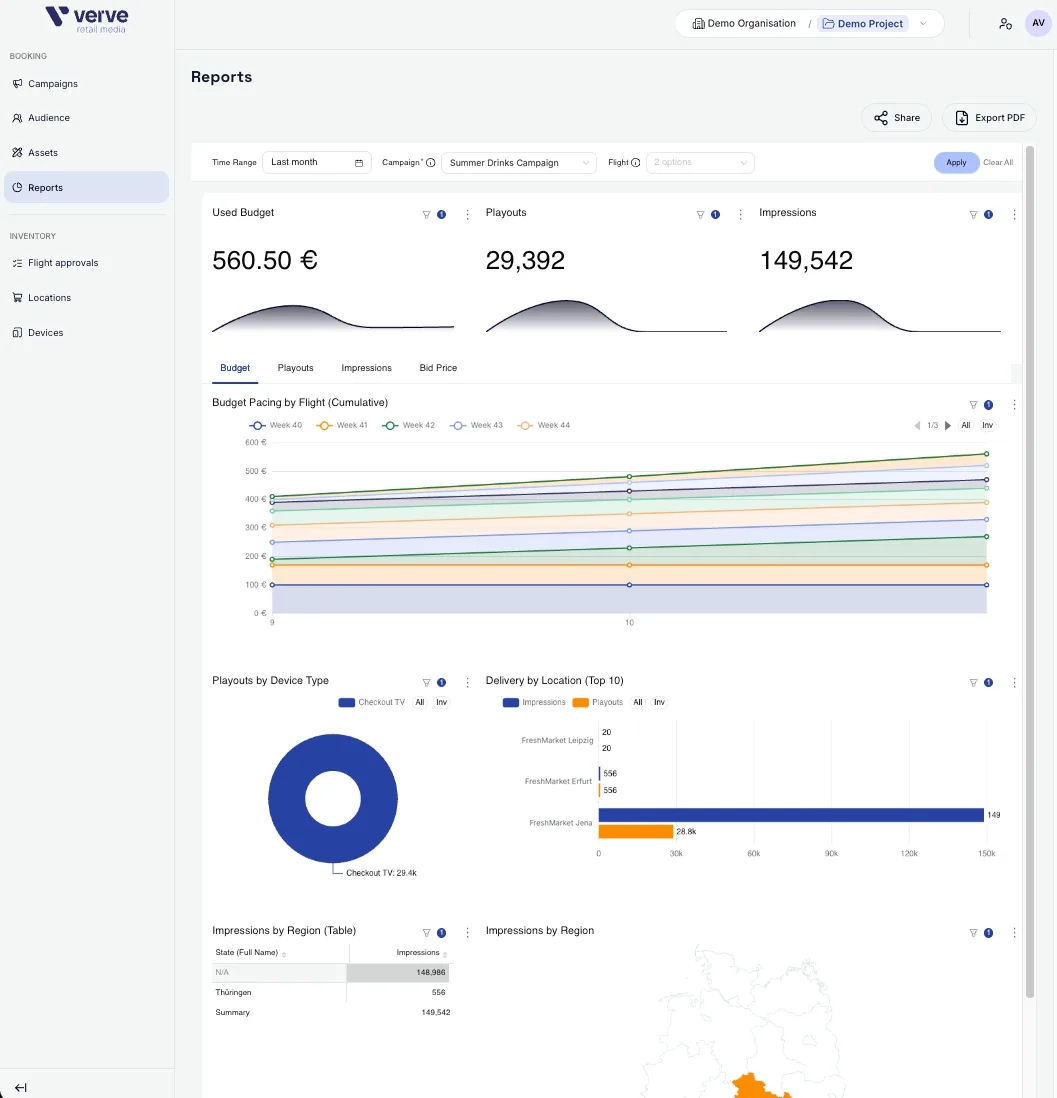
Open Booking › Reports. The numbers on the screenshot match the steps below.
 12345
Below the filters, three tiles show the totals: Used Budget, Playouts and Impressions. See Report metrics and breakdowns for what each number means.
Choose what to see
- 1Set the filters: Time Range, Campaign and, if you like, Flight. The report shows one campaign at a time.
- 2Click Apply.
Don’t forget to click Apply
The report only updates after you click Apply. Forgetting it is the most common mistake.
Download the report
You can download the whole report at once, or one chart at a time.
3 All charts as one PDF
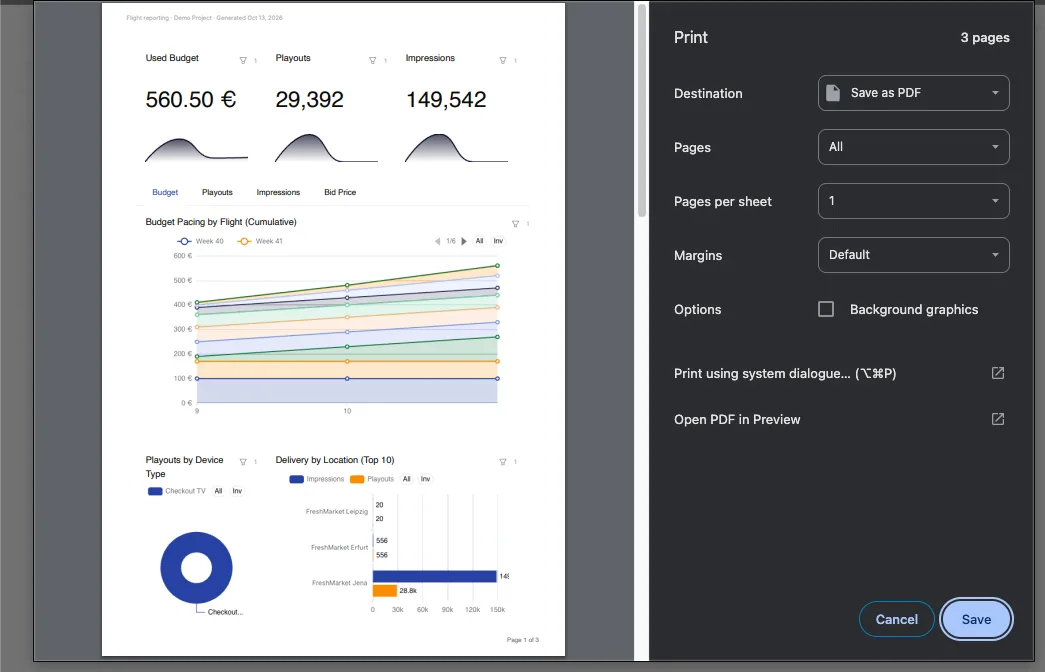
Click Export PDF. You see Preparing your report… for some seconds. Then your browser’s print window opens with a preview of the report.
- ASet Destination to Save as PDF.
- BClick Save.
The PDF shows the report as you see it, with the report name, the project name and the date at the top, and the applied filters at the end. Of the tabs Budget, Playouts, Impressions and Bid Price, it shows the one that is open. See Report exports.
 AB
4 One chart at a time
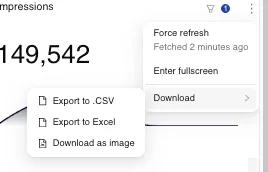
Every chart has its own ⋮ menu in its top-right corner.
- AOpen ⋮ and point to Download.
- BChoose the format: Export to .CSV, Export to Excel or Download as image.
CSV and Excel give you the numbers behind the chart. The image is the chart as you see it.
 AB
Share the report
- 5Click Share to copy a link to the report. The message Link copied. It opens this report with the same filters. confirms it. Paste the link into an email or a chat. Whoever opens the link sees the report with the same filters, so they don’t have to set them up again.
The link is not public
The link opens the report inside the platform. The person who opens it has to log in, and needs access to the project and to reports. The link gives access to nobody. You can’t set an end date for a link, and you can’t switch a link off. For people without an account, send the PDF instead. See Shareable report links.