

Location unique ID
Understand how the location unique ID tells the RMP that two entries are the same store, where the ID is checked and what it connects.
What it’s for
Every location has one unique ID: a number that belongs to this store only. In the RMP, the field is called Location Unique ID/TDLinx ID. For stores in the US, it’s the TDLinx code, a 7-digit store code from Nielsen. Other countries use their own system, for example the location’s external ID in Europe.
Locations are shared by everyone in the RMP. The unique ID is how the RMP knows that two partners mean the same store. It prevents the same store from being added twice, and it connects devices, audiences and reports to the right store.
In short
- Two entries are the same store when they have the same unique ID. The name and the address are not used for matching.
- The RMP checks the ID before you can fill in the form for a new location.
- If the ID already exists, you can’t add the store again. You open the existing store instead.
- The ID can’t be changed after the location is created.
- You connect a device to its store with the same ID.
How the match works
- The whole ID has to be the same. ‘1234567’ and ‘12345678’ are two different stores.
- Only the ID is compared. Two entries with the same address but different IDs are two locations. Two entries with the same ID but different addresses are one location with a location conflict.
- The check covers all stores. It includes the stores that other organisations added, not only your own.
- The ID is also the location’s External ID. The ID you enter is stored as the Location Unique ID/TDLinx ID and as the External ID of the location. That’s why you can find the store with both.
- The GLN is not used for matching. The GLN Number is an extra, optional ID of the store. See GLN.
The check when you add a location
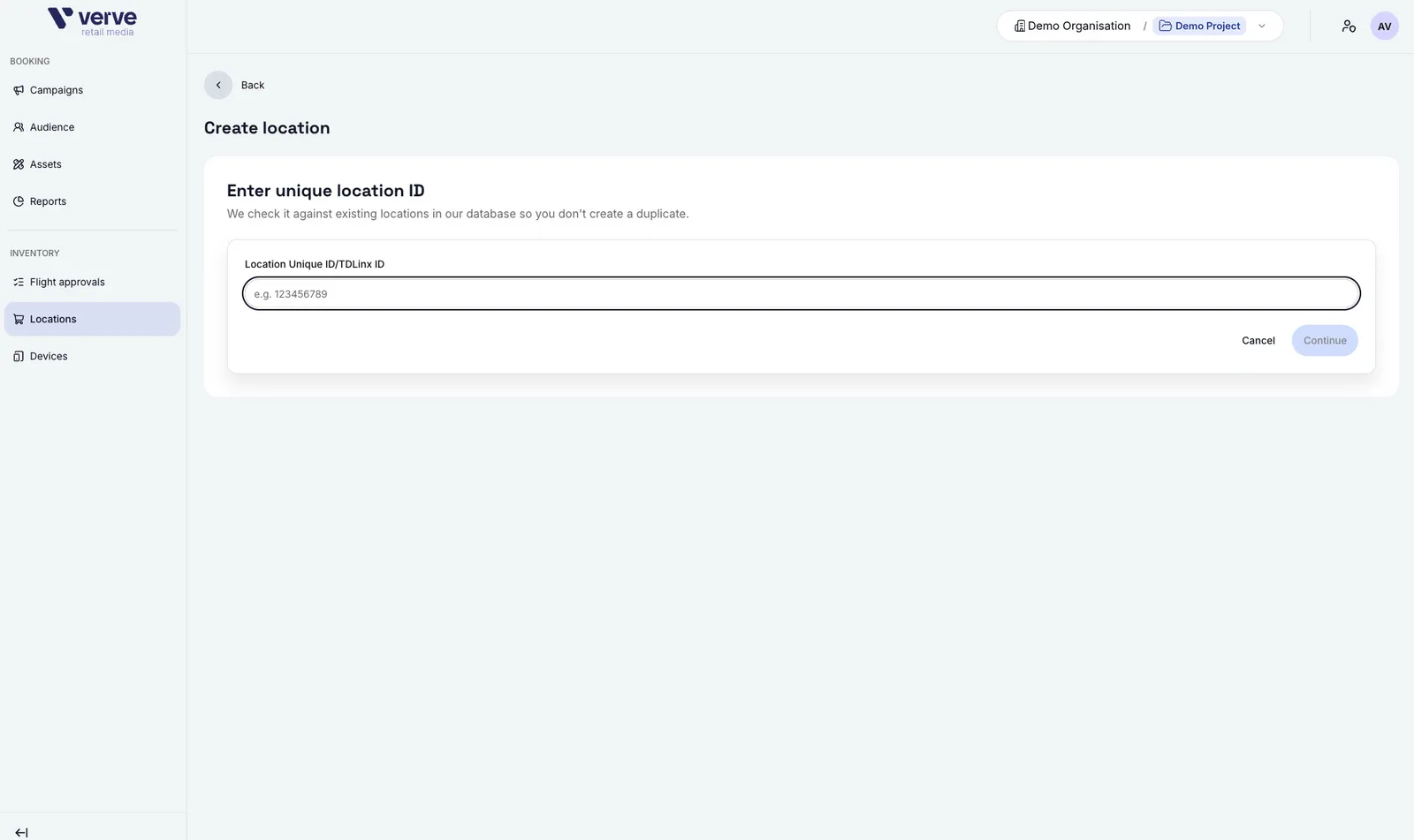
When you click Add location under Inventory › Locations, the RMP first asks for the ID under Enter unique location ID. After you click Continue, there are two results:
| Result | What you see | What to do |
|---|---|---|
| The ID is new | The form for the new location opens. The ID is already filled in. To use another ID, click Change ID. | Fill in the store’s details and click Save location. |
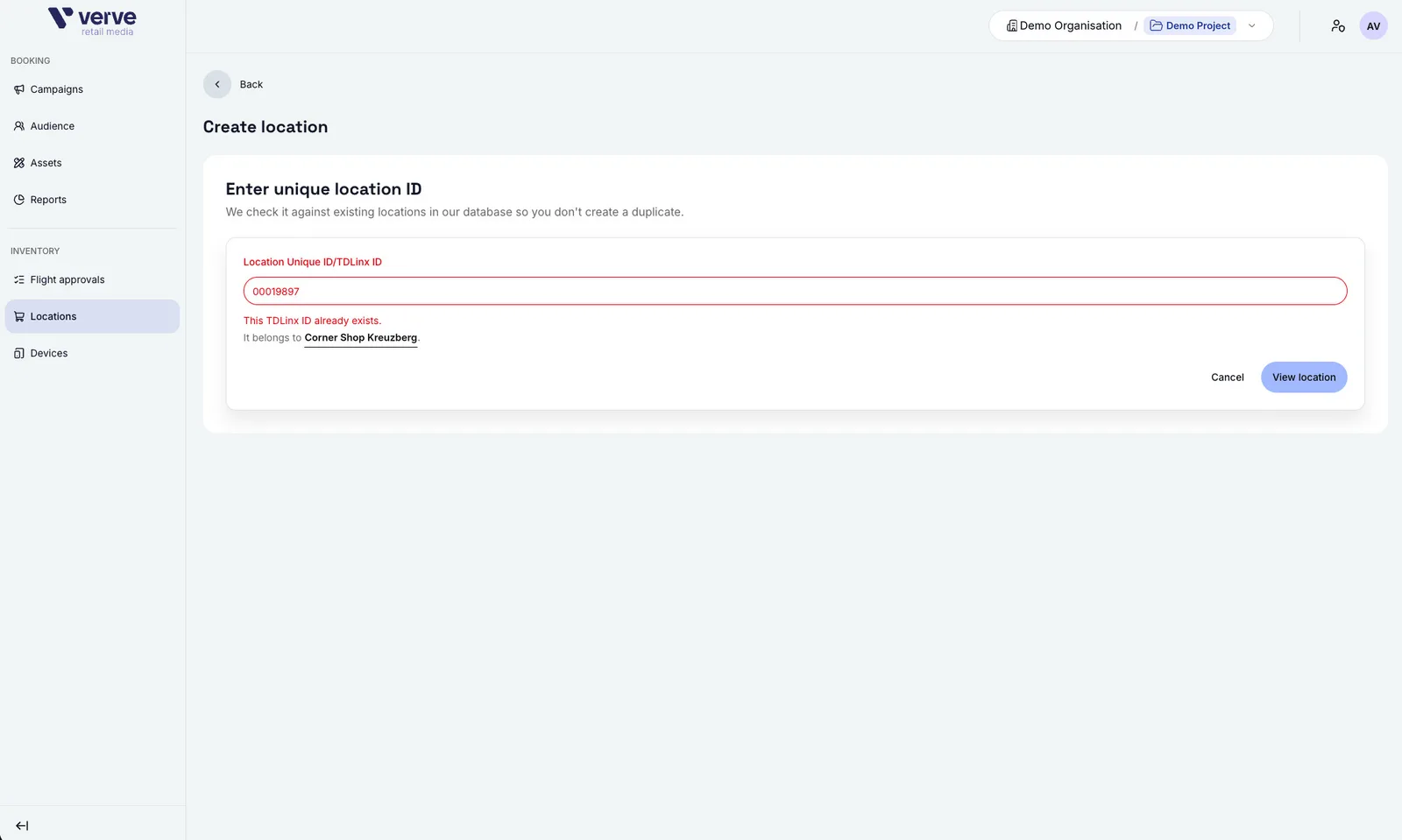
| The ID already exists | The message ‘This TDLinx ID already exists.’ and the name of the store it belongs to. | Click the store name or View location. If details are wrong, use Flag an issue on that store. |
If the RMP can’t check the ID, it shows ‘Couldn’t check this ID. Please try again.’ Click Continue again.
What the ID connects
| Where | How the ID is used |
|---|---|
| Device form | In Location Unique ID/TDLinx ID, you choose the store where the device is. The device is then connected to this location. |
| Location’s page | Devices counts all devices connected to this ID. Devices managed by other partners are counted but not shown. |
| Locations list | Search with External ID to find a store by its ID. The search also finds a part of the ID. |
| Audience | In a Store condition, Location ID matches this ID. See Targeting conditions. |
| Partner systems | When a partner’s system sends a store with an ID that already exists, the RMP adds it to the existing location. It doesn’t create a second one. If the details differ, the location gets a conflict. |
How to use it
The guide Create a location shows every step. This is the ID check:
- 1Enter the store’s unique ID in Location Unique ID/TDLinx ID.
- 2Click Continue. The RMP checks the ID against all existing locations.
 12
If the ID is already used, the RMP shows the store it belongs to:
- 1Click the store name to open the existing store.
- 2Or click View location.
 12
To connect a device, type the store’s name or ID in Location Unique ID/TDLinx ID in the device form, and choose the store from the list. See Create a device.
Fields and rules
| Field | Where | Required | Rule |
|---|---|---|---|
| Location Unique ID/TDLinx ID | New location | Yes | One ID per store. It has to be new in the RMP. Example: 123456789. |
| Location Unique ID/TDLinx ID | Location’s page | – | Read-only. ‘Location Unique ID/TDLinx ID cannot be edited.’ |
| Location Unique ID/TDLinx ID | Device form | Yes | Choose an existing location from the list. Text that you type but don’t choose from the list is not saved. |
| GLN Number | New location | No | An extra ID. It’s not used for matching. |
- Check the ID before you continue. You can’t correct it later. A wrong ID creates a second location for a store that may already exist.
- Create the location first. A device can only be connected to a location that exists. If the list in the device form shows No matching locations, add the location first.
- Use a number if you want to target by ID. In an audience, Location ID accepts 1 to 10 digits per entry.
- Not every partner has TDLinx codes. If your stores have none, use the store ID from your own system. Use it in the same way everywhere.
Related
- Glossary: TDLinx code, External ID, GLN, Location, Location conflict
- How-to guides: Create a location, Create a device, Build an audience
- Feature pages: Location conflict detection, Targeting conditions