

Invite a user
Give a colleague or a client access to a project, and choose what they can do there by assigning them a role.
Who can invite people
Only Admins can invite people in the RMP. Other roles don’t see Invite user.
Need a hand? Our customer support can set up user accounts for you. Write to rmp-support@verve.com.
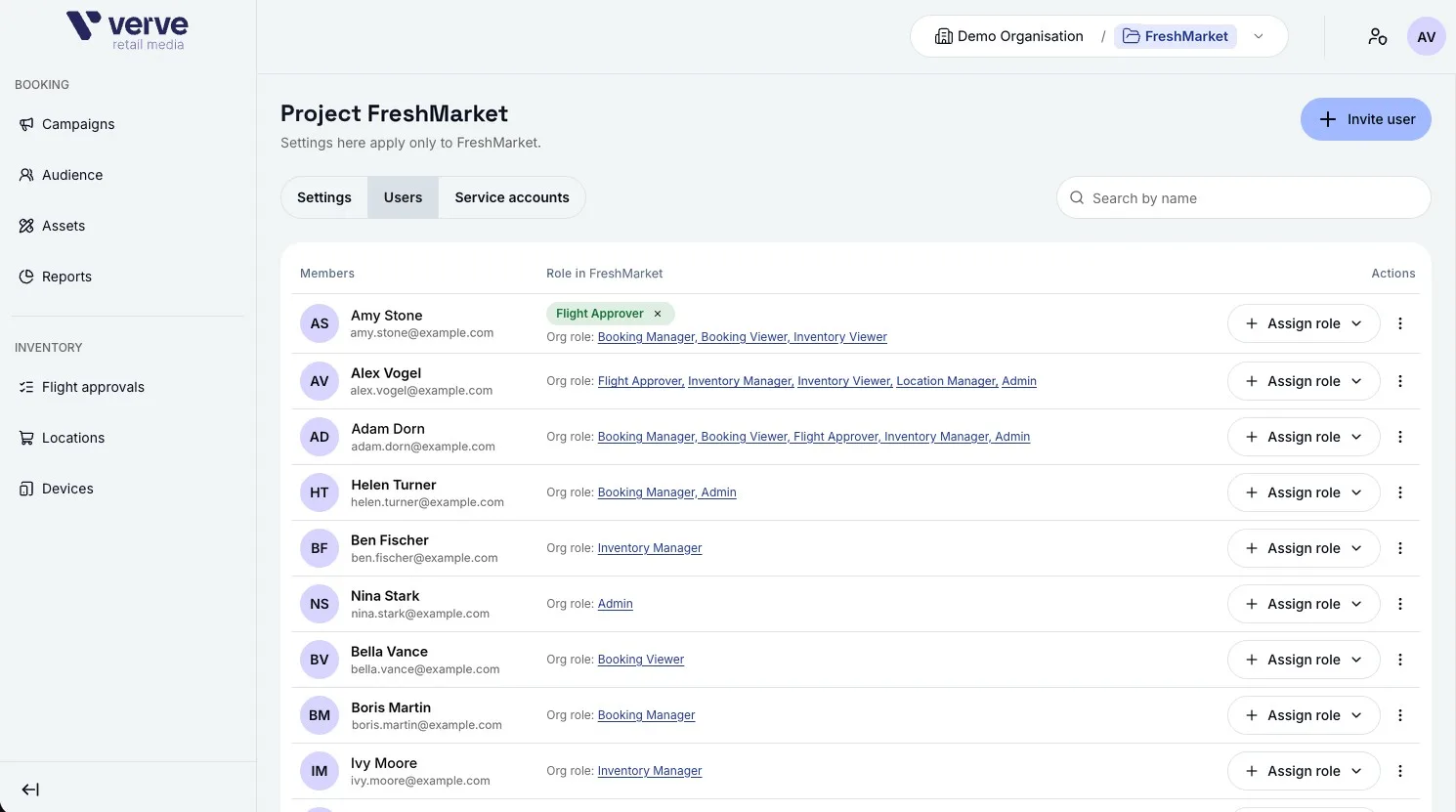
Open the project’s users
- 1Choose the project in the top-right corner, then click the project name to open project settings.
- 2Open the Users tab.
- 3Click Invite user.
4 The Role in column shows each person’s project roles as tags. Org role lists the roles they already have from the organisation, which apply to every project.
 1234
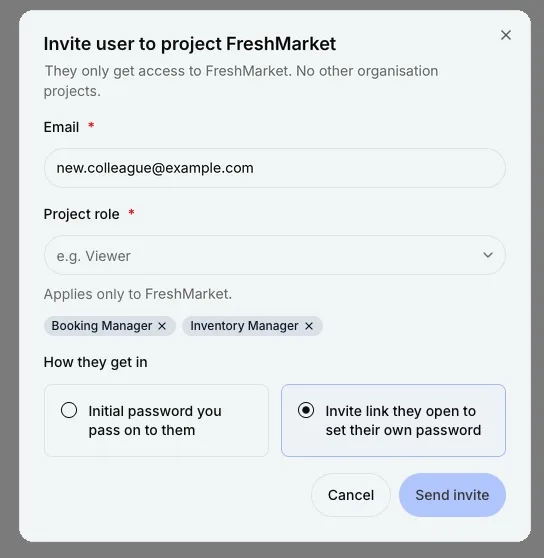
Fill in the invite
- 1Email: the person’s work email. Required.
- 2Project role: pick one or more roles. Required. They apply only to this project. Admin isn’t offered here, because it’s an organisation role. Not sure which? See Understand user roles.
- 3How they get in: choose Initial password you pass on to them or Invite link they open to set their own password. The invite link is selected when the dialog opens.
- 4Click Send invite.
 1234
Pass on the access
- A new person needs a name. If the person has no RMP account yet, the dialog Add their name opens. Enter the First name and Last name, then click Send invite again.
- You pass on the password or the link. The dialog User invited shows the Initial password, or the Invite code and the Invite link. They are shown only once. Copy them or click Download, give them to the person in a safe way, then click Done.
- A person with an RMP account keeps their password. They are added to the project right away and sign in as before. No password or link is shown.
- A person who is already in the project isn’t invited twice. The dialog changes to Update role, and your selection replaces their roles in this project. If their access comes from the organisation, use Assign role in the list instead.
- The email domain has to be known. If the RMP shows that the domain isn’t set up yet, write to rmp-support@verve.com or invite a different address.
A person invited from a project only gets access to that project, not to the organisation’s other projects. To give someone access to all projects, invite them in organisation settings, on the Users tab. There you choose an Org role, and you can add Extra project roles with Add project.
Was this helpful?