

Location conflict detection
Understand how the RMP notices that two sources say different things about the same store, what you see while it’s open and how it gets resolved.
What it’s for
Locations are shared: everyone in the RMP sees the same stores. Several partners can have devices in one store, and each of them can send details about it. Sometimes these details are not the same, for example two different opening hours or two different postal codes.
The RMP notices this by itself and marks the store with a location conflict. A person at Verve Retail Media then decides which information is correct. This keeps one clean record per store, so targeting by store stays exact.
In short
- A conflict means: two or more sources gave different details for the same store.
- The RMP checks for differences each time a location is saved. You don’t have to start the check.
- A conflict never stops you. You can keep using the location as usual.
- You start a conflict yourself when you use Flag an issue on a store and click Submit for review.
- A conflict resolver at Verve Retail Media picks the correct values. You don’t have to do anything after that.
One store, several versions
The RMP knows that two entries are the same store when they have the same unique ID. See Location unique ID.
For each store, the RMP keeps:
- One agreed version. This is what everyone sees on the location’s page.
- One version per project that added the store or proposed a change to it.
When only one project has a version of a store, its details become the agreed version directly. There’s nothing to compare, so there’s no conflict.
When several projects have a version, no project can change the agreed version alone. The RMP compares the versions each time one of them is saved. If a version differs from the agreed one, and nobody has reviewed this difference yet, the location gets a conflict.
How a conflict starts
| What happens | Result |
|---|---|
| You use Flag an issue on a store that another project added, and click Submit for review. | Your project gets its own version with your change. It differs from the agreed version, so the location has a conflict. |
| You change a store that your project added, and no other project has a version of it. | Your change is saved directly. No conflict. |
| You change a store that your project added, and another project also has a version of it. | Your version is saved, but the agreed version stays as it is. The location has a conflict until the difference is reviewed. |
| A partner’s system sends a store with the same unique ID but different details. | The location has a conflict. |
What is compared
The RMP compares the details that describe the store itself:
| Group | Fields |
|---|---|
| General | GLN Number, Store chain, Store sub chain, Merchant, Timezone, Currency, Supported languages |
| Address | Street, House number, Zip code, City, State, Region, Country, Store size (m²), Latitude and Longitude, Municipality, Municipality population, Administrative area, Nielsen area |
| Opening hours | The open hours of each weekday, and each entry under Date overrides |
- The status is not compared. Active or Inactive never causes a conflict.
- The location name is not compared. A different name alone doesn’t cause a conflict.
- The unique ID can’t differ. It’s the key that says which store the versions belong to.
- The order of a list doesn’t matter. ‘DE, EN’ and ‘EN, DE’ are the same supported languages.
- Coordinates count. Coordinates mark where the store is, not where a device is inside it. If you enter coordinates that differ from the ones another source entered, the location gets a conflict.
What you see
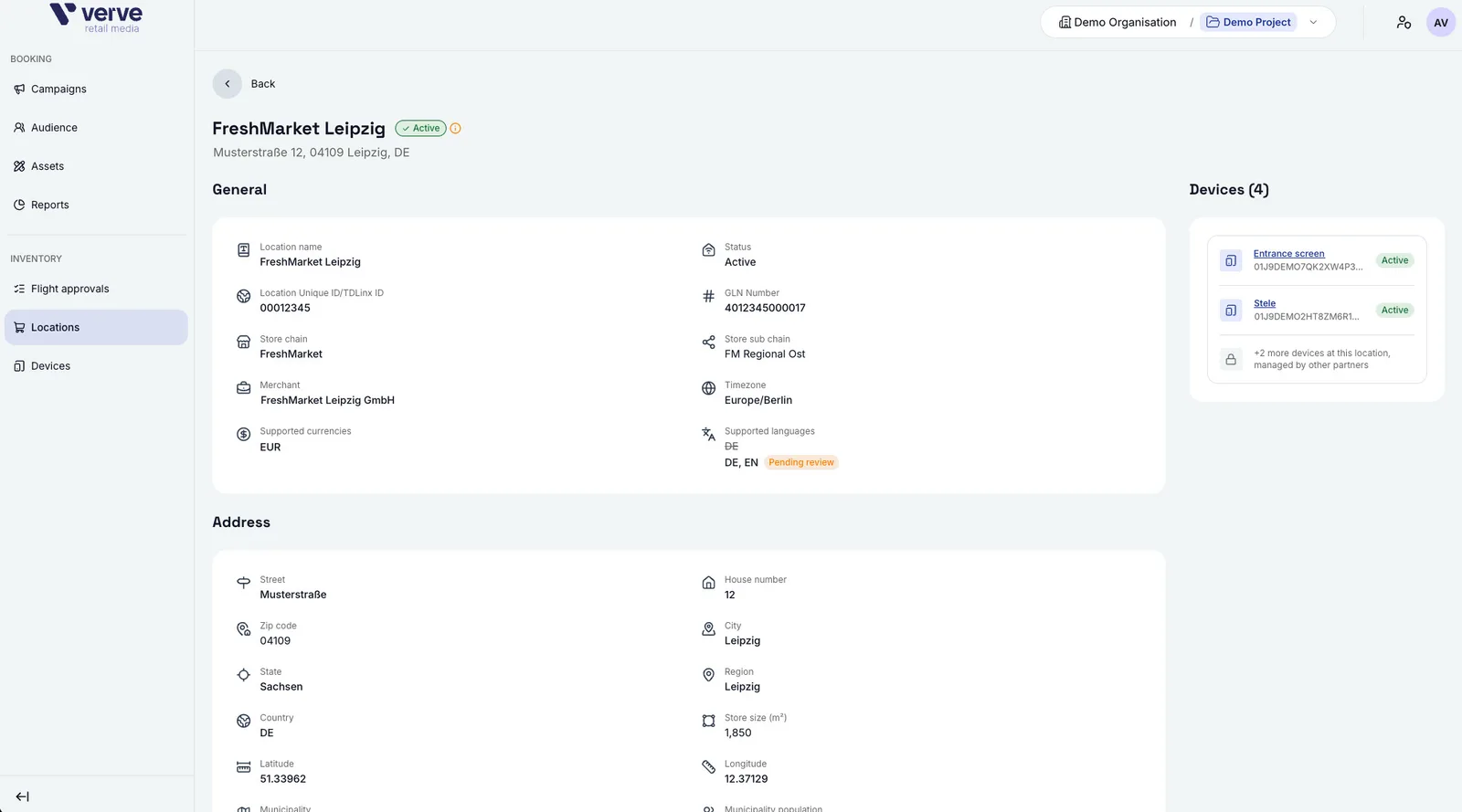
- A warning icon next to the status. It appears in the list under Inventory › Locations and at the top of the location’s page. When you hover it, it says: ‘Several sources submitted different details for the same location.’
- The old and the new value together. On the location’s page, the agreed value is crossed out. Each different value is shown below it with a Pending review badge.
- Nothing else changes. The location, its devices and your flights work as before.
 1
How a conflict is resolved
A conflict resolver, a dedicated person at Verve Retail Media, reviews each conflict. Only conflict resolvers see the Show conflicts only filter and the Resolve button in the locations list.
- 1The resolver clicks Resolve. The Conflict resolution panel opens and shows the agreed version, called Canonical, next to the version of each organisation.
- 2Under Conflict fields, the resolver picks the value to keep for each field that differs. Fields that are the same in all versions are listed separately.
- 3When a value is picked for every conflict field, the resolver clicks Update information.
After that:
- The agreed version has the picked values. Everyone sees them on the location’s page.
- The warning icon and the Pending review badges disappear.
- You don’t have to do anything. The versions of the projects are not deleted or overwritten. They count as reviewed.
- A new difference opens a new conflict. If a source later sends details that differ again and were not reviewed before, the location gets a conflict again.
How to use it
Use Flag an issue when you see store information that isn’t right. Open the store from Inventory › Locations and hover the information to show the Flag an issue icon. The guide Edit a location and understand conflicts shows every step.
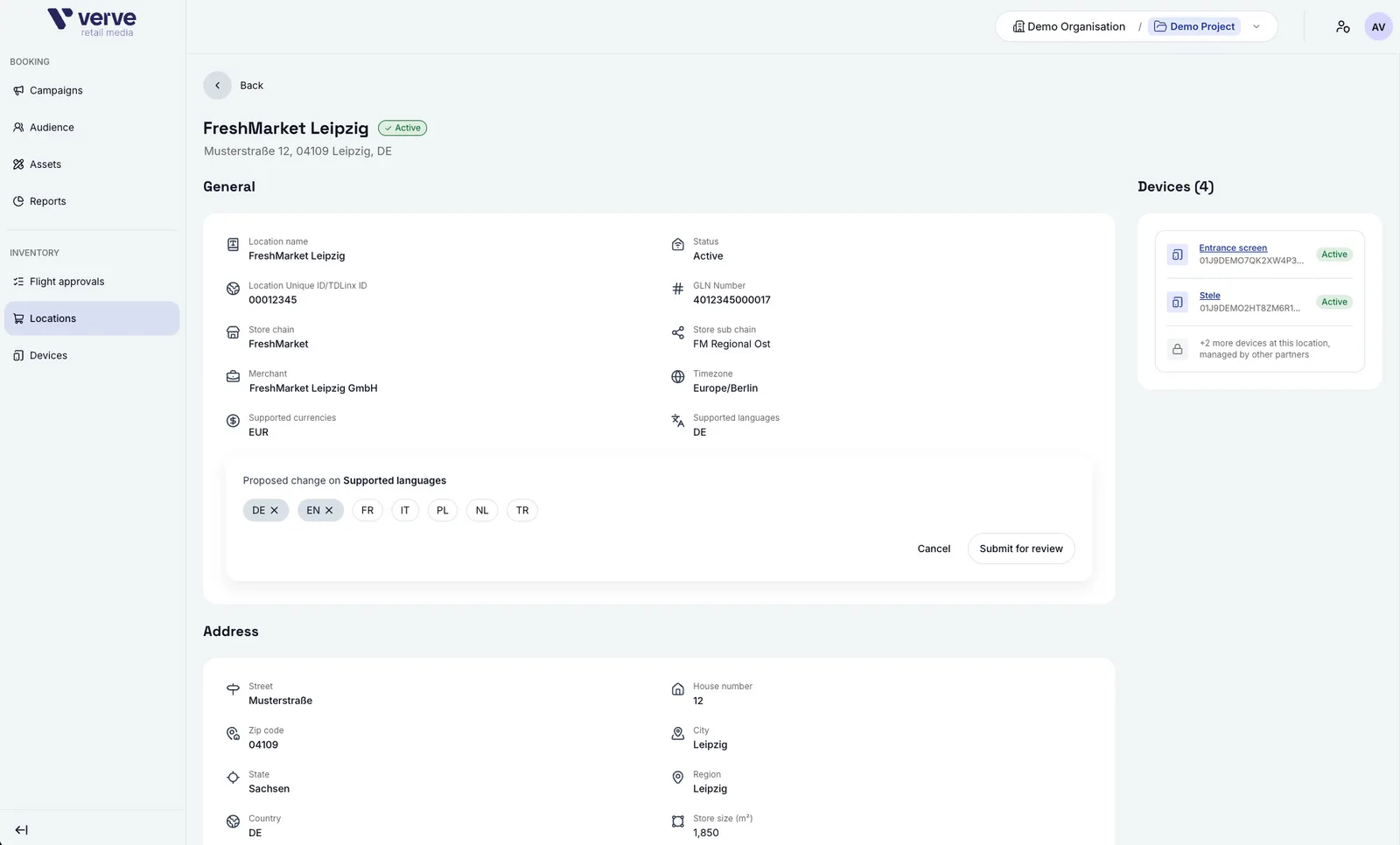
- 1Click Flag an issue next to the information, and enter the correct value under Proposed change on ….
- 2Click Submit for review.
 12
Your change now waits for review. If your project added the store, the card is called Edit … and the button is Save.
Fields and rules
| Field | Can you flag it? | Rule |
|---|---|---|
| Location Unique ID/TDLinx ID | No | It can’t be edited after the location is created. |
| Status | No | It’s shown on the location’s page, but it has no Flag an issue icon. |
| Latitude and Longitude | Yes | Latitude from -90 to 90, longitude from -180 to 180. Enter both, or leave both empty. |
| Supported languages | Yes | At least one language. |
| Opening hours and Date overrides | Yes | You change the hours of one day, or one date override, at a time. |
| All other fields under General and Address | Yes | Same format as in the form for a new location. |
- One field at a time. Each Flag an issue changes one piece of information. To change more, flag the next one after the first is submitted.
- Several proposals can wait together. If different sources propose different values for one field, each value is shown with its own Pending review badge.
- No icon, no permission. If you don’t see the Flag an issue icon, your role doesn’t allow you to edit locations.
- You can’t add a store twice. When you create a location with a unique ID that already exists, the RMP shows you the existing store. Flag an issue there.
Related
- Glossary: Location, Location conflict, Coordinates, TDLinx code, GLN
- How-to guides: Edit a location and understand conflicts, Create a location
- Feature pages: Location unique ID, Venue taxonomy
- For developers: Locations: conflicts