

Project floor price
Set a default minimum price per playout for all devices in a project, and understand which floor price a device uses and how it affects flights.
What it’s for
A floor price is the lowest price at which a device sells one playout. A flight that pays less than the floor price doesn’t play on this device.
The project floor price is the default for all devices in a project. You set it once, and every device without a floor price of its own uses it. This way you don’t have to enter a price on each device.
In short
- The project floor price is a price in € per playout.
- It applies only to devices that have no floor price of their own. A device floor price always comes first.
- A non-guaranteed flight has to pay at least the floor price.
- A guaranteed flight has to pay at least the floor price plus the Device premium price of the device.
Which floor price a device uses
Each device can have its own Device floor price. The project floor price is used only when this field is empty.
| Device floor price | Project floor price | The device uses |
|---|---|---|
| Set | Set | The device floor price |
| Set | Empty | The device floor price |
| Empty | Set | The project floor price |
| Empty | Empty | No floor price. A flight at any price can play. The device form doesn’t let you save a device like this. |
Example: the project floor price is €0.02 per playout. The project has 100 devices. Five of them, at the checkout, have a device floor price of €0.05. These five devices sell a playout for at least €0.05, and the other 95 devices for at least €0.02.
A device floor price can be higher or lower than the project floor price. It replaces the project floor price for this device. The two prices are never added.
A device needs one of the two
When the project has no floor price, the device form asks for a Device floor price on every device you create or edit. Set a project floor price first if most of your devices sell at the same price.
For the fields on the device, see Device floor price.
How it affects flights
The floor price is checked for each device, one by one. So a flight can play on the devices with a low floor price and be left out on the devices with a higher one.
Non-guaranteed flights
A non-guaranteed flight has to pay at least the floor price of a device to play on it. If its price is lower, the device skips this flight and plays something else. The flight still plays on the devices whose floor price it reaches.
Guaranteed flights
A guaranteed flight reserves screen time in advance. For this, a device asks for more than the floor price: the floor price plus its Device premium price. This premium is a percentage that is set on each device.
Example: a device uses the project floor price of €0.05 and has a Device premium price of 10%. A non-guaranteed flight needs a price of at least €0.05 per playout. A guaranteed flight needs at least €0.055 per playout.
- The capacity check counts only devices you can pay for. Devices that ask for more than your Cost per playout are left out, so a higher floor price can mean less capacity.
- If no device is in reach, you can’t submit. The capacity check shows No availability and asks you to raise the cost per playout.
- Reserved devices stay reserved. When a guaranteed flight is approved and a device is reserved for it, the flight keeps playing on this device at the price it was booked with, also if the floor price goes up later.
Flights priced per thousand impressions
The floor price is always a price per playout. For a flight priced by CPM, the RMP first works out what the flight pays for one playout on each device. This depends on how many impressions one playout has on this device. Then it compares this amount with the floor price.
A device with few people in front of it earns less per playout from a CPM flight. So a CPM flight can miss the floor price on a quiet device and reach it on a busy one.
How to use it
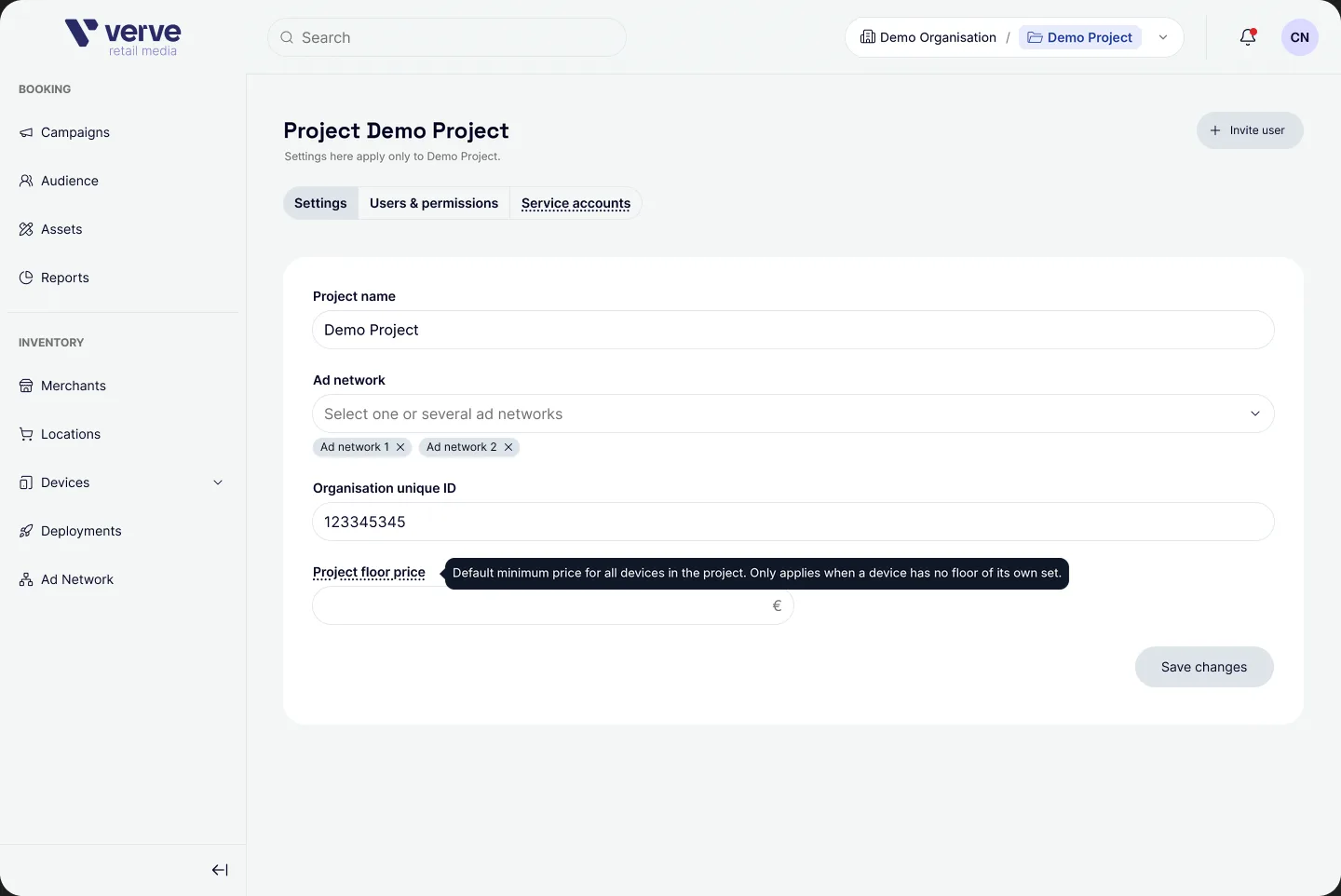
Only Admins can change the project floor price. You find it in project settings, on the Settings tab.
- 1Choose the project in the top-right corner, then click the project name to open project settings.
- 2In Project floor price, enter the price for one playout in euros. Below the field, the RMP shows the same price per 1,000 playouts, so you can check it.
- 3Click Save changes.
 123
To remove the project floor price, clear the field and click Save changes.
After you change the project floor price, it can take some time until every device and the capacity check use the new price.
Fields and rules
| Field | Required | Rule |
|---|---|---|
| Project floor price | No | An amount in € per playout. It can’t be negative. Example: 0.02, which is €20 per 1,000 playouts. |
- Empty and 0 mean the same. In both cases the project has no floor price.
- Only projects have a floor price. There’s no floor price for the whole organisation. Set it in each project.
- It’s the same for all deal types. You enter one floor price. The higher price for guaranteed flights comes from the Device premium price of each device, not from a second floor price.
- It doesn’t change a device floor price. Devices with their own floor price keep it when you change the project floor price.
- It’s a minimum, not the price. A flight pays the price it was booked with. The floor price only decides whether this price is enough for a device.
Related
- Glossary: Project floor price, Project, Device, Guaranteed flight, Non-guaranteed flight, CPP, CPM
- How-to guides: Understand organisations and projects, Create a device, Book a guaranteed flight, Book a non-guaranteed flight
- Feature pages: Device floor price