

Organisation and project roles
See every role in the RMP, what it lets you see and do, and how a role in the organisation and a role in a project work together.
What it’s for
A role decides what a person can see and change in the RMP. Without a role, a person has no access. You give roles so that everyone can do their own work, and nothing more.
A role always belongs to a place: an organisation or one project. The same person can have several roles, in the organisation and in different projects.
In short
- There are six roles for people: Booking Manager, Booking Viewer, Inventory Manager, Inventory Viewer, Flight Approver and Admin.
- An organisation role applies to every project in the organisation. A project role applies to one project only.
- Roles add up. A project role can give more access than the organisation role, but never less.
- Admin exists only as an organisation role. Only Admins can invite people and assign roles.
Organisation level and project level
| Level | Where you assign it | Where it applies |
|---|---|---|
| Organisation role | Organisation settings › Users. The Assign role menu is marked All Projects. | In every project of the organisation, also in projects that are added later. |
| Project role | Project settings › Users. The Assign role menu is marked This project only. | In this project only. The person doesn’t get access to other projects. |
How the two levels combine
In a project, a person can do everything that their organisation roles allow, plus everything that their roles in this project allow. A project role only adds access. It can’t take away what an organisation role gives.
Example: Mia is a Booking Viewer in the organisation. In the project FreshMarket, she is also a Booking Manager. Mia can create and edit campaigns in FreshMarket. In all other projects, she can only look at them.
You can’t limit an organisation role in one project
A Booking Manager in the organisation is a Booking Manager in every project. To give someone less access in one project, remove the organisation role and give project roles instead, one project at a time.
In project settings, the Users tab shows both levels for each person. The roles of this project are shown as tags. The line Org role shows the roles that come from the organisation. You can change these only in organisation settings.
The six roles
| Role | What it’s for | Organisation | Project |
|---|---|---|---|
| Booking Manager | Creates and manages campaigns, flights, audiences and assets, and submits flights for approval. | Yes | Yes |
| Booking Viewer | Follows campaigns, flights, audiences, assets and reports without changing them. | Yes | Yes |
| Inventory Manager | Adds and edits locations and devices. | Yes | Yes |
| Inventory Viewer | Sees locations and devices without changing them. | Yes | Yes |
| Flight Approver | Approves or rejects flights that are booked on their devices. | Yes | Yes |
| Admin | Runs the organisation: people, roles, service accounts and settings. Can also do the work of a Booking Manager. | Yes | No |
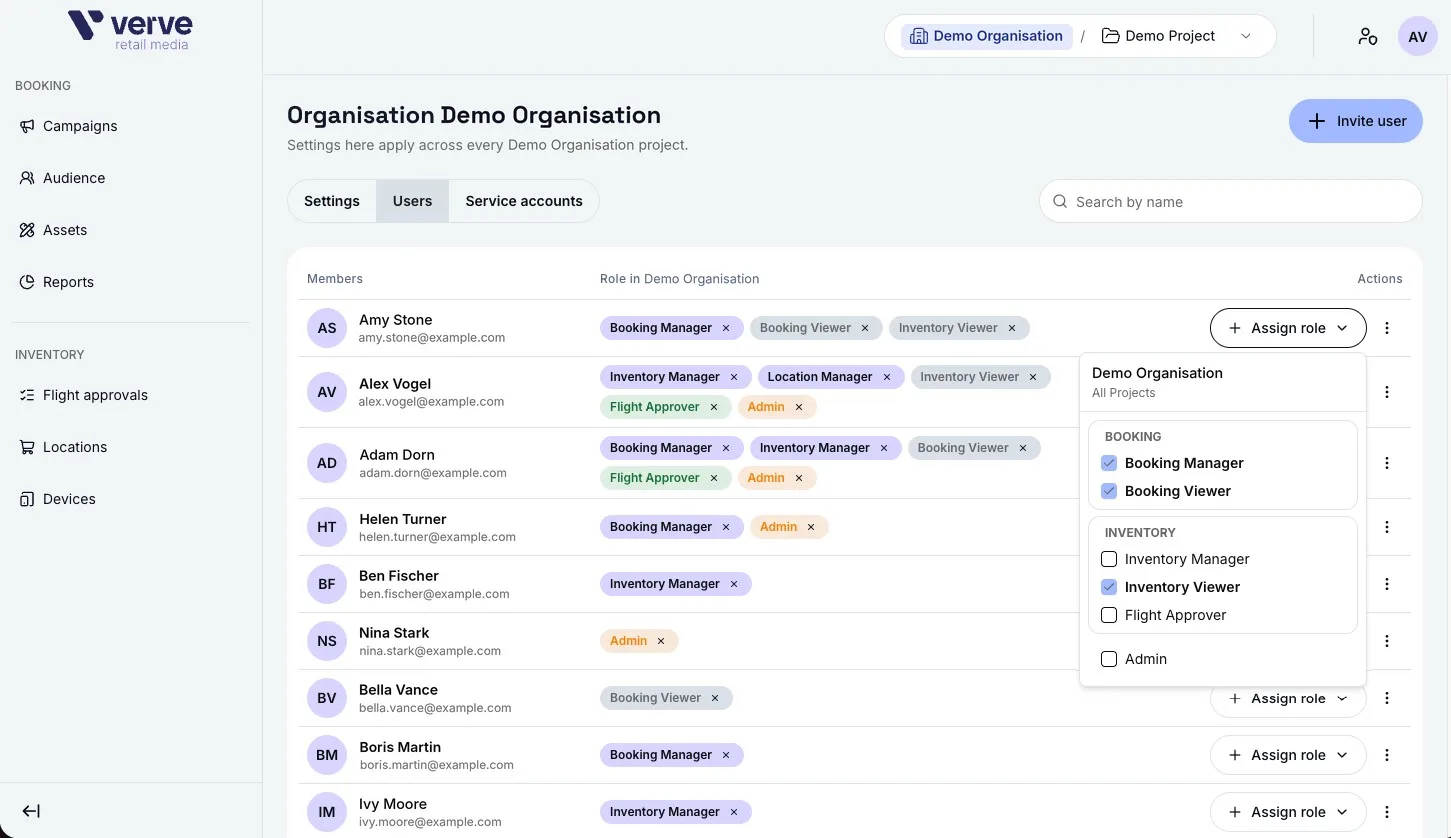
In the Assign role menu, the roles are grouped as Booking and Inventory. Flight Approver is in the Inventory group, because it is a role for the people who own the devices.
Some organisations also see the roles Latest Release Access and Next Release Access. They give access to a preview version of the RMP. You can assign them only if you hold them yourself, and only in the organisation.
What each role can do
Edit = create and change · View = see only · – = not part of this role
| Area | Booking Manager | Booking Viewer | Inventory Manager | Inventory Viewer | Flight Approver | Admin |
|---|---|---|---|---|---|---|
| Campaigns and flights | Edit | View | – | – | – | Edit |
| Submit, pause or terminate a flight | Yes | – | – | – | – | Yes |
| Approve or reject flights | – | – | – | – | Yes | Yes |
| Audiences | Edit | View | – | – | – | Edit |
| Assets | Edit | View | – | – | – | Edit |
| Reports | View | View | – | – | – | View |
| Locations and devices | – | – | Edit | View | – | – |
| Users, roles and service accounts | – | – | – | – | – | Edit |
| Organisation and project settings | – | – | – | – | – | Edit |
- Booking and inventory are separate. A booking role gives no access to locations and devices, and an inventory role gives no access to campaigns. A person who needs both gets two roles.
- Admin doesn’t include inventory. An Admin who also works with locations and devices needs the Inventory Manager role as well.
- Service accounts have their own roles. See Service accounts.
How to use it
Only Admins can invite people and assign roles. Open organisation settings with a click on the organisation name in the top-right corner, or project settings with a click on the project name. Then open the Users tab.
- 1Invite user adds a new person. In organisation settings, you choose an Org role, and you can add Extra project roles with Add project. In project settings, you choose a Project role.
- 2Assign role opens the role menu for a person who is already in the list.
- 3Select a role to give it, or clear it to remove it. The top of the menu shows where the role applies: All Projects or This project only.
 123
You can also remove a role with the × on its tag. To take away all roles at once, open the menu at the end of the row and click Remove from with the name of the organisation or project.
To check your own roles, move the mouse over the person icon in the top-right corner. My access shows your Org-wide roles and the roles for This project.
Fields and rules
| Field | Where | Rule |
|---|---|---|
| Org role | Invite in organisation settings | Required. One or more roles. They apply to all projects of the organisation. |
| Extra project roles | Invite in organisation settings | Optional. Roles for one project, added on top of the organisation role. Click Add project for each project. |
| Project role | Invite in project settings | Required. One or more roles. They apply to this project only. Admin is not offered here. |
- Every person has at least one role. When you remove the last role of a person, the person is removed from the organisation or the project. You can invite them again later.
- Removing a project role keeps the organisation role. Access that comes from the organisation isn’t affected when you remove someone from a project.
- Organisation roles are changed in the organisation. In project settings, you can’t remove a role that comes from the organisation. You can still add a project role for the same person.
- You can’t change your own roles. Ask another Admin to do it.
- Someone always has to be able to assign roles. The RMP refuses a change that would leave nobody who can assign roles.
- A person invited in a project sees only that project. They don’t get access to the other projects of the organisation.
Related
- Glossary: Role, Organisation role, Project role, Admin, Flight Approver
- How-to guides: Understand user roles, Invite a user, Understand organisations and projects
- Feature pages: Service accounts