

Service accounts
Let your own software connect to the RMP without a person signing in, and understand roles, keys, client secrets and how to replace them safely.
What it’s for
A service account is an account for a system, not for a person. Your own software uses it to connect to the RMP through the API, for example to send your locations and devices to the RMP automatically.
A service account has no password and can’t sign in to the RMP in the browser. It proves who it is with a key or a client secret. Like a person, it can do only what its roles allow.
In short
- A service account gets inventory roles only: Inventory Viewer, Inventory Manager or Inventory Integration.
- It can have several keys, each with an optional expiry date, and one client secret.
- A key or a client secret is shown only once, when you create it. Save it right away.
- After you delete a key, revoke a client secret or deactivate the account, a connected system can keep working for some hours.
Roles for a service account
Service accounts have their own list of roles. They work with locations and devices only.
| Role | What the service account can do |
|---|---|
| Inventory Viewer | Read locations and devices. |
| Inventory Manager | Create and change locations and devices. |
| Inventory Integration | Send locations and devices from a partner system: add them, update them and delete them. Only service accounts can have this role. |
A service account can’t book campaigns, approve flights or manage users. These tasks always need a person, so the booking roles, Flight Approver and Admin are not offered for service accounts.
The roles apply where you create the service account or assign the role:
- In organisation settings, the roles apply to every project of the organisation.
- In project settings, the roles apply to this project only.
Keys and client secrets
A service account needs a key or a client secret before a system can connect with it. You can use one of them or both.
| Key | Client secret | |
|---|---|---|
| How many | Several per service account | One per service account |
| What you get | A key document. Copy key document or Download it as a file. | A Client ID and a Client secret. Copy or download them. |
| Expiry date | Optional: No expiry or Expires on a date | None |
| How to remove it | Delete key | Revoke client secret |
| How to replace it | Add the new key first, then delete the old one. | Revoke the old one first, then generate a new one. |
Shown only once
The RMP shows a key document or a client secret only when you create it. It can’t be shown again. If you lose it, add a new key and delete the old one, or revoke the client secret and generate a new one.
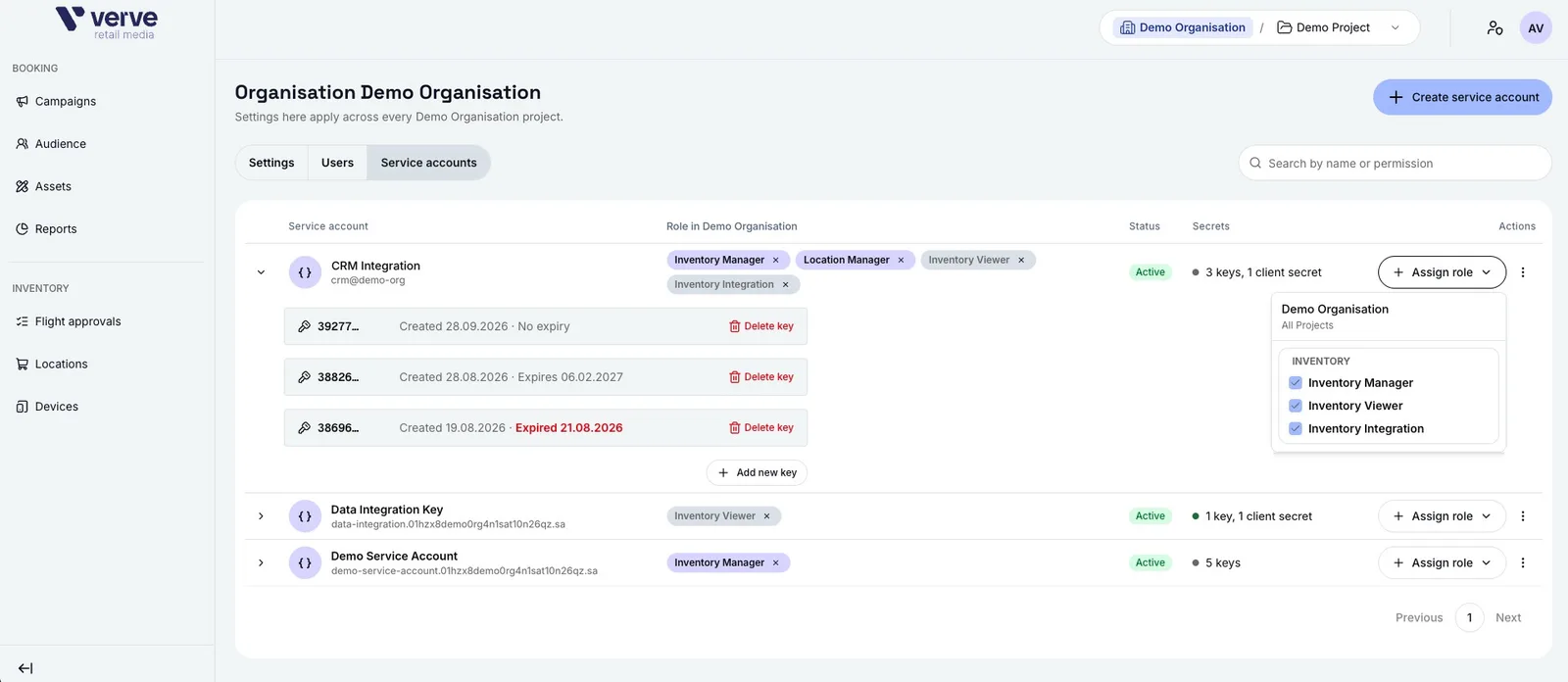
The list shows each key with the date it was created and its expiry date, or No expiry. An expired key is marked Expired and no longer works. The Secrets column shows how many keys an account has, and whether it has a client secret.
Replace, deactivate and remove
Replace a key without a break
Because a service account can have several keys, you can change a key while your system keeps running:
- Click Add new key and save the new key document.
- Change your system so that it uses the new key.
- Click Delete key on the old key.
Replace a client secret
A service account holds one client secret at a time. You have to revoke the old one before you can generate a new one. Plan a short break: generate the new client secret right after you revoke the old one, and put it into your system at once.
Deleting and revoking don’t stop a system right away
A deleted key or a revoked client secret can’t be used for a new connection. But a system that is already connected keeps its access until that access expires. This can take hours, and you can’t make it shorter. Deleting and revoking can’t be undone.
Deactivate an account
Deactivate account stops the whole service account. The status changes from Active to Deactivated. The account can’t start new connections, and anything that depends on it fails when its current access expires. This can also take hours.
The keys of a deactivated account stay valid, but they don’t work until you click Activate account. You can’t add a key while the account is deactivated.
Remove an account from the list
The RMP has no button that deletes a service account. To stop using one, deactivate it, or delete its keys and revoke its client secret.
When you remove the last role of a service account, it disappears from the list of this organisation or project. It isn’t deleted. Its keys and its roles in other places stay as they are.
How to use it
Only Admins can create and manage service accounts. Open organisation settings with a click on the organisation name in the top-right corner, or project settings with a click on the project name. Then open the Service accounts tab.
- 1Click Create service account. Enter a Service account ID and a Display name, choose the roles, and click Create. Then click Add a key, or Done to add a key later.
- 2Click the arrow in front of an account to see its keys. Each key shows the date it was created and its expiry date. Delete key removes a key.
- 3Click Add new key. Choose No expiry or Expires on with a date, and click Create. Save the key document before you click Done.
- 4Assign role adds and removes roles. The three dots (⋮) open the other actions: Generate new key, Generate client secret, Revoke client secret and Deactivate account.
 1234
Give the full ID of the service account and the key document, or the Client ID and Client secret, to the people who set up your system. Use a safe way to pass them on, as you would for a password.
Fields and rules
| Field | Required | Rule |
|---|---|---|
| Service account ID | Yes | Lowercase letters, digits and hyphens. A hyphen can’t be first or last. Up to 40 characters. Example: reporting-pipeline. |
| Display name | Yes | The name shown in the list. Example: Reporting pipeline. |
| Description | No | A note about what the account is for. It’s stored with the account, but not shown in the list. |
| Roles | Yes | At least one of the three roles for service accounts. |
| Expires on | No | A date from tomorrow to two years from today. Without a date, the key has no expiry. |
- The RMP completes the ID. It adds the ID of your organisation and the ending .sa to the ID you enter. The dialog shows the full ID before you create the account. An account created in a project also carries the ID of the organisation.
- The ID has to be free. If a user already has this ID, choose another one.
- A new account has no key. Nothing can connect with it until you add a key or generate a client secret.
- One client secret at a time. While an account has a client secret, Generate client secret is not available. Revoke the old one first.
- Up to 100 keys per account. Delete keys you no longer use.
Related
- Glossary: Service account, Key, Client secret, Role
- How-to guides: Understand organisations and projects
- Feature pages: Organisation and project roles
- For developers: Authentication