

Asset languages
Understand how the language of an asset and the languages of a store work together, and how to cover every store of your audience.
What it’s for
Stores serve shoppers in different languages. Every location in the RMP has its Supported languages, and every asset has the Language of its text or voice-over. Asset languages bring the two together: in a flight, you book each asset for one language, and the RMP shows you which stores of your audience you cover with it.
In short
- Each asset has exactly one language. You choose it when you upload the asset.
- Each location has one or more supported languages. The owner of the location sets them.
- The flight form shows the languages that the stores of your audience support, each with its own slots.
- A slot of a language only offers assets in this language.
Where the languages come from
| Language of | Set in | Rule |
|---|---|---|
| The asset | Language, in the Upload assets form | Required. One language per asset: German, French or English. |
| The store | Supported languages, in the location form | Required. At least one language per location. |
The language of an asset is what you tell the RMP. It doesn’t read the text in your image or listen to your video, so choose the language with care. If the same ad exists in German and in French, upload two files, one for each language.
How it works in a flight
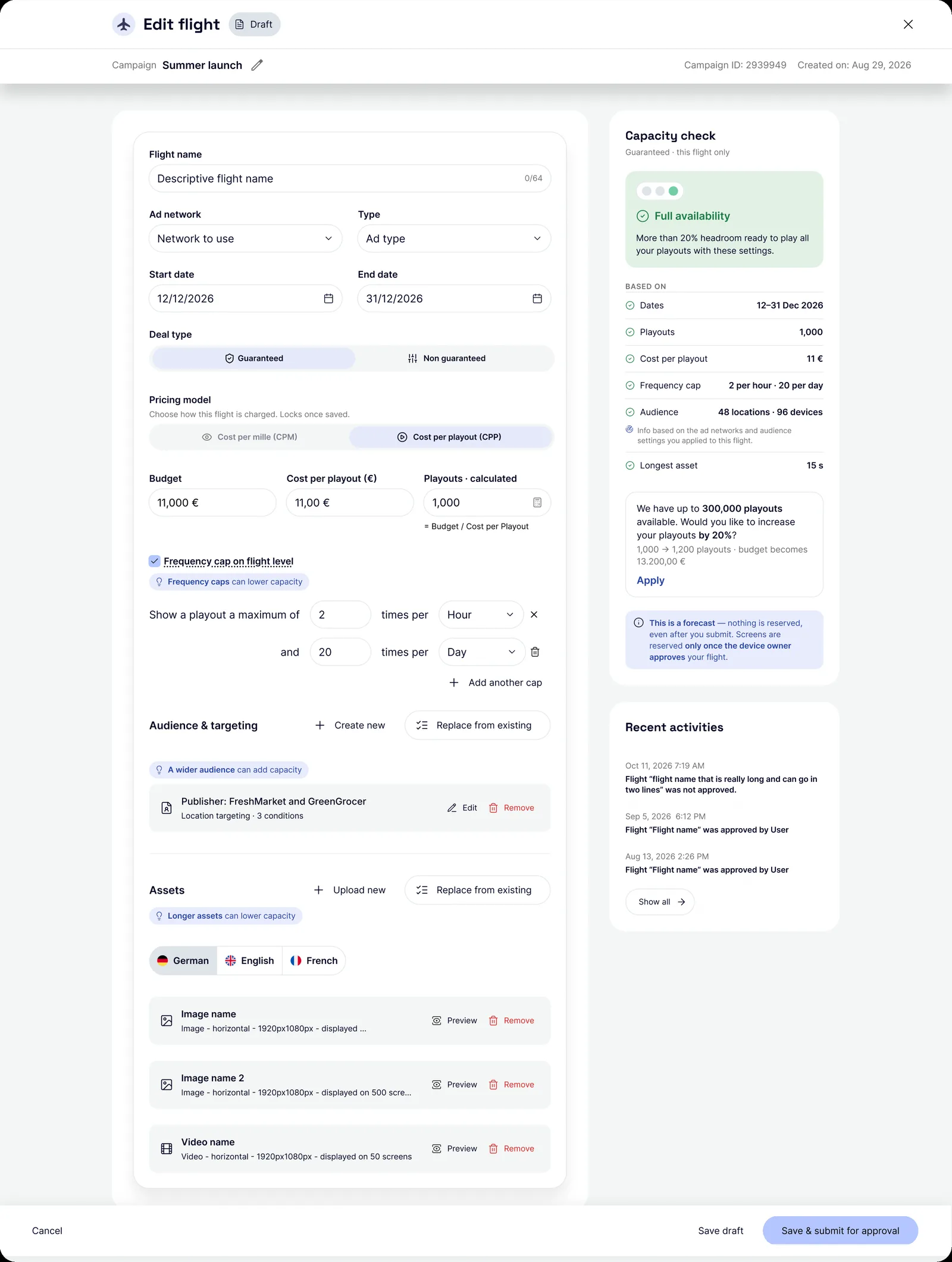
When you select an audience in the flight form, the RMP looks at the stores of this audience and collects their supported languages. The Assets section then shows a switch with these languages.
- Each language has its own slots. The slots of a language are the ad formats of the devices in stores that support this language. Two languages can have different slots.
- A slot offers only assets in its language. In the German slots, you see German assets that fit the ad format. A French asset isn’t in the list.
- You decide which languages you cover. A flight needs at least one asset, not one per language. Stores of a language you leave empty are not covered by your flight.
- A store with two languages needs only one. A store that supports German and French is covered when you add an asset in German or in French.
Example: your audience has 40 stores in Germany that support German, and 8 stores in Switzerland that support German and French. The switch shows German and French. With German assets alone, you cover all 48 stores. With French assets alone, you cover only the 8 stores in Switzerland.
How to use it
- 1Upload each language version as its own asset, and choose its Language. Check it in the Language column of the Assets list.
- 2In the flight form, select the audience. Then go to Assets and choose a language in the switch.
- 3Fill the slots of this language. Then choose the next language and fill its slots.
 23
Fields and rules
- The audience decides the languages. You can’t add a language to the switch. A language is there only when at least one store of your audience supports it.
- ‘No bookable ad formats for German’ means that the stores with this language have no device with an ad format you can fill. The other languages still work.
- The same file in two languages? An asset has one language. For an ad without text or voice-over, upload the file once for each language you want to cover.
- Wrong language on an asset? Open the asset, click Edit asset and change the Language. Flights that are already submitted keep the asset as it was.
- The language has to match when you submit. If the language of an asset no longer matches its slot, for example after an edit, the flight can’t be submitted. Remove the asset from the slot and select a matching one.
- Languages can lower capacity. For a guaranteed flight, stores you don’t cover can’t deliver playouts. Check the Capacity check after you change the assets.
Related
- Glossary: Asset, Location, Audience
- How-to guides: Upload an asset, Create a location, Book a guaranteed flight
- Feature pages: Ad formats and asset specs, Asset rotation