

Capacity planning
Understand what the capacity check for a guaranteed flight counts, what Full, Limited and No availability mean, and when screens are really reserved.
What it’s for
Capacity is the room there is for your flight: which devices are free, and how much free screen time they have. A guaranteed flight promises a number of playouts, so the RMP has to know that this number fits before partners are asked to approve it.
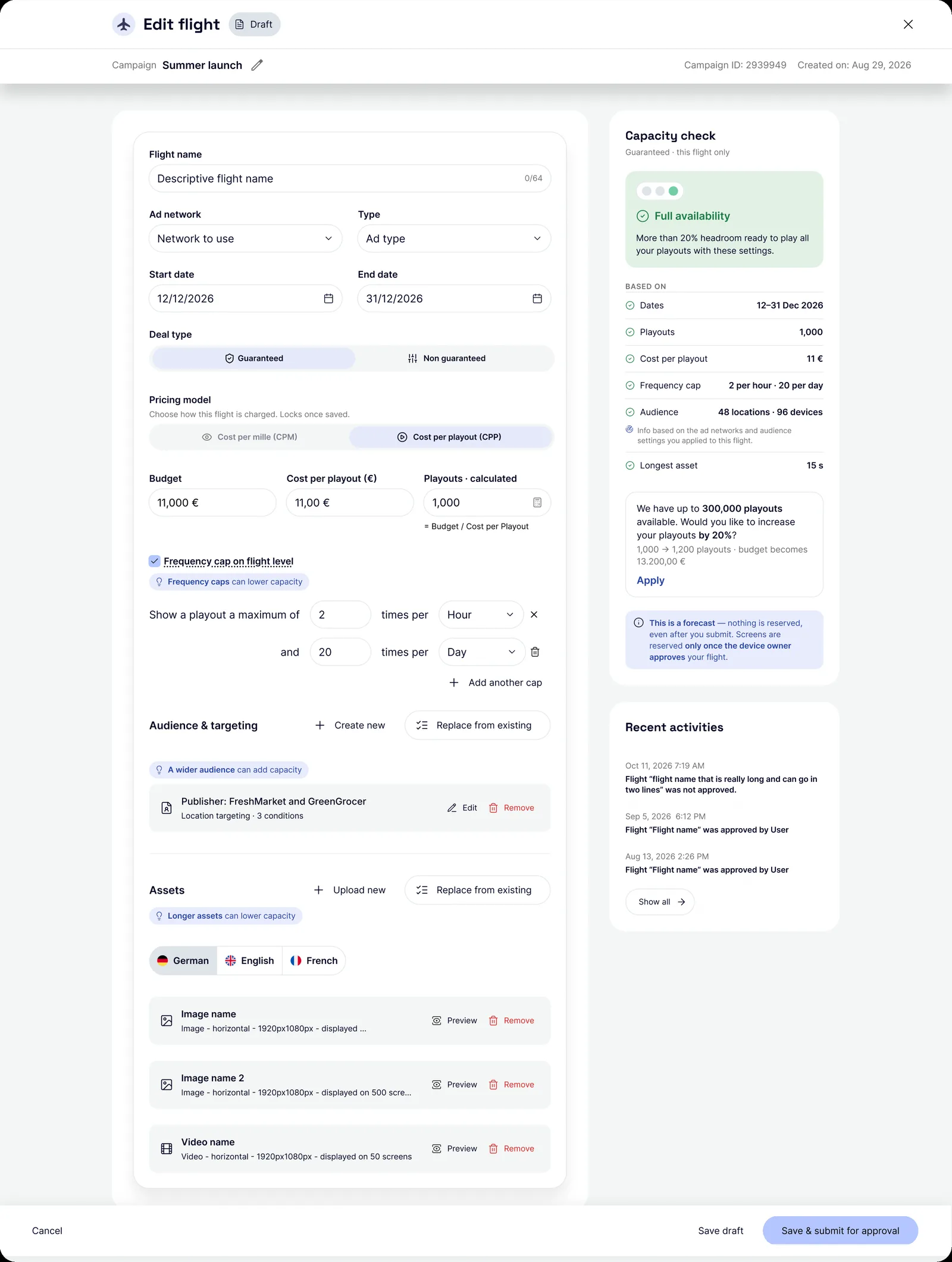
The Capacity check answers this question while you set the flight up. It’s the panel on the right of the flight form. It tells you if your playouts fit, what the answer is based on, and how many playouts you could book.
In short
- The check has three results: Full availability, Limited availability and No availability.
- You can submit with Full availability and Limited availability. You can’t submit with No availability, but you can save a draft.
- The result depends on your dates, playouts, price, frequency caps, audience, ad products and longest asset.
- It’s a forecast. Screens are reserved only once the device owner approves your flight.
- A non-guaranteed flight has no capacity check.
What the check counts
The check looks at every device your flight can use, on every day of the flight. For each device and day, it counts how many of your playouts fit. Then it adds everything up and compares the total with the playouts you ask for.
A device is counted only when all of this is true:
- It’s in your flight’s ad network and audience. The ad network and the audience decide which devices can play your ad.
- Its owner allows guaranteed deals on it. Device owners decide for each device if it can be booked for guaranteed flights.
- Your price is high enough. Each device has a minimum price for guaranteed deals. A device is left out when your cost per playout is below this price.
On each of these devices, the check then counts the free screen time:
- Only the time a device can sell. This is part of the time its store is open. The rest is kept for other content.
- Minus the time that is already reserved. Guaranteed flights that are already approved keep their screen time. Your flight gets only what is left.
- Only whole playouts. If a device has 25 free seconds on a day and one playout takes 10 seconds, 2 playouts fit, not 2.5.
- Not more than your frequency caps allow. A device with room for 300 playouts a day counts as 10 when your cap is 10 per Day.
A small reserve is kept free
The RMP doesn’t offer the last part of the capacity. It keeps a small reserve, so that a guaranteed flight can still deliver when something changes. The number of playouts the check shows as available is therefore a little lower than everything the screens could play.
What the result is based on
Under Based on, the panel lists the settings it used. Each of them changes the capacity in its own way.
| Row | What it shows | How it changes capacity |
|---|---|---|
| Dates | The start and end date of the flight | More days give your ad more free screen time. |
| Playouts | The playouts you ask for. This is what your budget buys at your cost per playout. | It doesn’t change the capacity. It’s the number the capacity is compared with. |
| Cost per playout | Your price for one playout | A higher price can add devices that cost more. |
| Frequency cap | Your caps, for example ‘2 per hour · 20 per day’ | Strict caps lower the number of playouts each device can take. This row is optional. |
| Ad products | The number of ad products of the flight | Device owners can block ad products on their devices, so your ad products can leave devices out. |
| Audience | After the check: the locations and devices your flight can book, for example ‘48 locations · 96 devices’ | A wider audience reaches more devices. |
| Longest asset | The length of your longest asset in seconds | A longer asset uses more screen time for each playout, so fewer playouts fit. |
- The Audience row counts the devices your price can book. It can be lower than the number of devices in your audience, because devices that cost more than your price are left out.
- The longest asset decides the length of every playout. The RMP chooses between your assets for each playout, so the check plans with the longest one. Then the reserved time is enough for every asset.
- A row with a link is still missing. Click the link, for example Add audience or Upload asset, to go to this setting in the form.
The three results
| Result | What it means | What you can do |
|---|---|---|
| Full availability | There’s enough room to deliver all your playouts with these settings, and room to spare. | You can submit the flight for approval. |
| Limited availability | Your flight fits, but there’s not much room left. Demand for these screens is high. | You can submit. Don’t wait: the room can be gone before partners approve. |
| No availability | There’s not enough room for your playouts. | You can’t submit. Change your settings, or click Save draft to finish later. |
With No availability, the panel tells you which of three problems you have:
| The panel says | What to do |
|---|---|
| The audience reaches no screen that can be booked as guaranteed. | Widen the audience, or book the flight as non-guaranteed. |
| The cost per playout is below what these screens sell for. | Raise the cost per playout. |
| The screens can’t fit all the playouts you asked for over this period. | Ask for fewer playouts, widen the audience, or run the flight for longer. |
The suggestion under the result
When the check knows how many playouts are available, it can suggest a number that fits. Click Apply, and your playouts and your budget change for you. The line under the question shows the change before you click, for example ‘1,000 → 1,200 playouts · budget becomes 13.200,00 €’.
| Result | The check suggests | Example |
|---|---|---|
| Full availability | About 20% more playouts, but never more than what is available | ‘We have up to 300,000 playouts available. Would you like to increase your playouts by 20%?’ |
| Limited availability | All playouts that are available | ‘We have up to 1,150 playouts available. Would you like to take them all?’ |
| No availability, when there are too few playouts | Fewer playouts: the number that is available | ‘Only 800 playouts are available. Would you like to come down to that?’ |
- A suggestion never leads to No availability. It’s never higher than the number of playouts that is available.
- You don’t have to take it. The suggestion is optional. Your flight stays as it is if you don’t click Apply.
- Not every result has one. There’s no suggestion when no screen can be booked as guaranteed, or when your price is too low. Fewer playouts don’t solve these problems.
It’s a forecast, not a reservation
The check shows what is free at the moment you run it. Nothing is reserved for you, even after you submit. Other flights can take the same screen time while your flight waits for approval.
- Screens are reserved only once the device owner approves. Each device owner decides for their own devices. See flight approval.
- The RMP checks again when you submit. If the room is gone in the meantime, the flight can’t be submitted and stays a draft.
- Submit soon when availability is limited. If time passes, someone else may take this space, and your flight can no longer be guaranteed.
How to use it
The Capacity check appears in the flight form when you choose Guaranteed as the Deal type. It runs by itself the first time, as soon as the flight has an ad network, dates, a budget and a cost per playout, an audience, at least one ad product and an asset. A frequency cap is not needed.
- 1Read the result: Full availability, Limited availability or No availability.
- 2Under Based on, check the settings the result was calculated with.
- 3To take the suggestion, click Apply. Your playouts and your budget change.
- 4Read the note at the end: the result is a forecast, and nothing is reserved yet.
- 5Click Save & submit for approval. This works with Full availability and Limited availability.
 12345
After the first check, the panel doesn’t check again by itself. When you change a setting, it shows one of these states:
| The panel shows | What it means | What to do |
|---|---|---|
| Needs a new check | You changed a setting after the last check. The old result is still shown, but it’s greyed out. Changed rows show the old value crossed out. | Click Check now. |
| Can’t check yet | A setting the check needs is missing or not valid. | Fill it in. Then click Check now. |
| Checking capacity… | The check is running. It can take up to 15 seconds. Meanwhile you can’t edit the flight or submit it. | Wait, or click Save draft. |
| Check unavailable | The check couldn’t run. | Click Try again. You can still save the flight as a draft. |
| Capacity can’t be checked | You don’t have access to check capacity for this flight. The ad network is the usual reason. | Choose another ad network, or ask an Admin. |
If you change only the budget or the number of playouts, you don’t need a new check. The capacity stays the same, and the result updates at once.
Fields and rules
| Setting in the flight form | Needed for the check | Rule |
|---|---|---|
| Deal type | Yes | Has to be Guaranteed. With Non guaranteed, the panel isn’t shown. |
| Ad network | Yes | Only devices of this ad network are counted. |
| Start date and End date | Yes | Both dates are needed. |
| Budget, Cost per playout and Playouts | Yes | The budget has to cover at least one playout. |
| Frequency cap on flight level | No | Without a cap, only the free screen time limits a device. |
| Audience & targeting | Yes | One audience. |
| Ad products | Yes | At least one ad product. |
| Assets | Yes | At least one asset. The longest one sets the length of a playout. |
- Only guaranteed flights have a capacity check. A non-guaranteed flight doesn’t promise a number of playouts, so nothing is checked and nothing is reserved. You can submit it at any time, but it may play less than you planned if screens are busy.
- The check is for this flight only. Your other flights that are still drafts are not counted, because a draft reserves nothing.
- You can submit only with a current result. The flight can’t be submitted while the check runs, when it needs a new check, when the check couldn’t run, or with No availability. The form then shows ‘Guaranteed flights can only be submitted once the capacity check clears’.
- You can always save a draft. Save draft works with every result.
- The check is there while you can edit the flight. After you submit, the flight is locked. To change it and check again, withdraw it first. See Edit a flight after you submit it.
Not enough capacity? Try this
Ask for fewer playouts, run the flight longer, pay a bit more per playout, widen your audience or loosen your frequency caps. After each change, click Check now to see the new result.
Related
- Glossary: Capacity, Guaranteed flight, Non-guaranteed flight, Playout, Flight approval
- How-to guides: Book a guaranteed flight, Book a non-guaranteed flight, Approve a flight
- Feature pages: Frequency cap, Targeting conditions, Asset rotation