

Sensors
Understand the four sensors a device can have, what each one reports, and which audiences need them.
What it’s for
A sensor lets a device tell the RMP what is happening around it: who is in front of the screen, what is in the shopper’s basket, or where in the store the device is. The RMP uses this to choose an ad that fits the moment.
You tell the RMP which sensors a device has under Sensor capabilities in the device form. This matters for booking: some targeting conditions only reach devices with the right sensor.
In short
- A device can have four sensors: Advertima Sensor, Demographics sensor, Basket sensor and Location sensor.
- A Demographic condition in an audience only reaches devices with the Demographics sensor.
- Basket SKUs in an audience only reach devices with the Basket sensor.
- A device with the Location sensor reports where it is in the store each time it asks for an ad.
- A device can’t have the Advertima Sensor and the Demographics sensor at the same time.
The four sensors
The form shows the sensors in three groups: Demographic detection, Basket detection and Location detection.
| Sensor | Group | What the device reports | What it’s needed for |
|---|---|---|---|
| Demographics sensor | Demographic detection | The age and gender of the people in front of the screen, and how many they are | Audiences with a Demographic condition |
| Advertima Sensor | Demographic detection | The age and gender of the people in front of the screen, detected with Advertima’s camera hardware | Not used by audiences yet. See below. |
| Basket sensor | Basket detection | The products in the shopper’s basket | Audiences with Basket SKUs |
| Location sensor | Location detection | Where the device is in the store at this moment | Devices that move, for example a Handheld or a Smart Cart |
Demographics sensor and Advertima Sensor
Both sensors detect who is in front of the screen. They do the same job, so a device can have only one of them. When you turn one on, the form turns the other one off.
- Demographic targeting needs the Demographics sensor. An audience with a Demographic condition only includes devices with this sensor. A device without it can’t tell who is in front of it.
- Advertima isn’t included yet. A device with only the Advertima Sensor is not in an audience with a Demographic condition.
- No detection, no playout. A flight with a Demographic condition plays only in the moments when the device reports the people the audience asks for. If the device reports nobody, or nothing at all, this flight doesn’t play.
Basket sensor
The device reports the products in the shopper’s basket when it asks for an ad. A flight whose audience has Basket SKUs plays only when the basket holds all the listed SKUs. Only devices with the Basket sensor are in such an audience.
Location sensor
Most devices stay in one place. Their place in the store is the Venue type, Zone type and Aisles that you set in the device form. A device that moves with the shopper can’t have one fixed place. With the Location sensor, it reports its zone and aisle itself, each time it asks for an ad.
- It is in every audience that selects a place. A device with the Location sensor is included in every audience with an Open OOH selection, because it can be in any of these places.
- It plays only where it is. The device plays a flight only while it is in a place the audience selected.
- Without a report, its own place counts. If the device doesn’t report where it is, the RMP uses the place from the device form.
Sensors choose the moment
Most targeting conditions describe the device and its store, and they are the same for every playout. Demographic and Basket SKUs are different: they describe a moment. The device has to report this moment, and that’s what the sensor is for.
For this reason, the number of screens in an audience shows the devices that could play the ad. With sensor targeting, they play it only when the right people or products are detected.
The switch doesn’t install a sensor
Turning a sensor on tells the RMP that the device has this sensor and sends its data. The device itself has to send the data with each request for an ad. Turn on only the sensors that the device really has. The RMP doesn’t accept sensor data from a device without the matching sensor.
How to use it
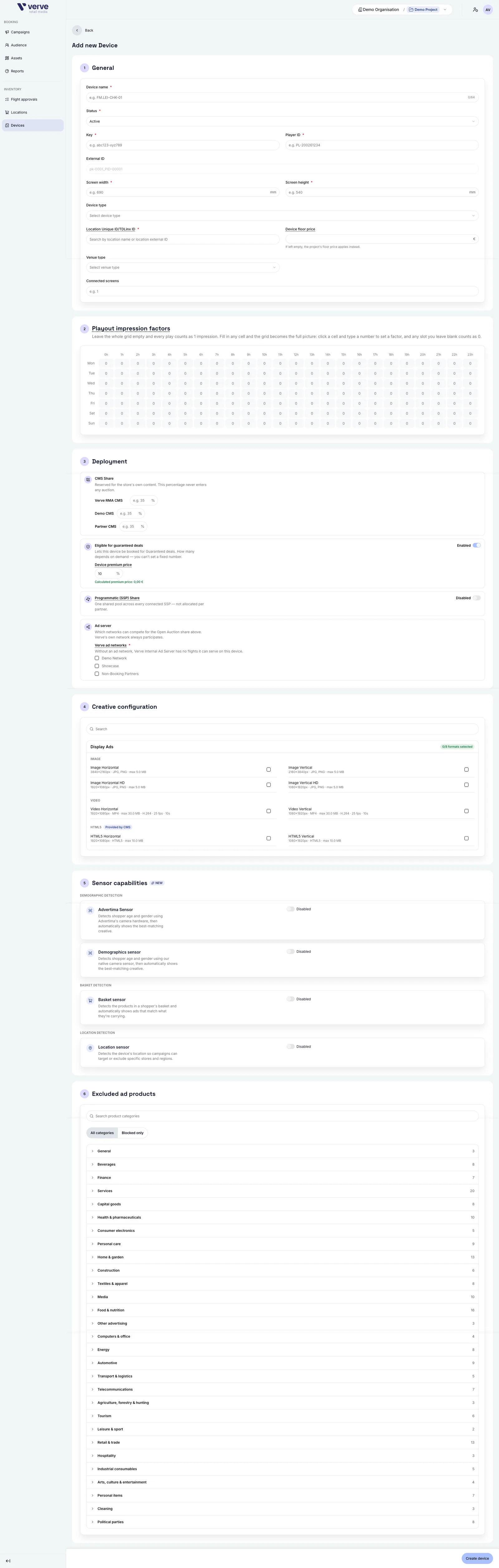
You set the sensors in the device form. Go to Inventory › Devices and click Add device, or open a device and click Edit device. Then scroll to Sensor capabilities. Each sensor has a switch that shows Enabled or Disabled.
- 1Under Demographic detection, turn on the Demographics sensor or the Advertima Sensor. You can turn on only one of them.
- 2Under Basket detection, turn on the Basket sensor if the device reports the shopper’s basket.
- 3Under Location detection, turn on the Location sensor if the device moves and reports its own place.
- 4Click Create device, or Save device when you edit.
 1234
The device’s page shows the sensors that are turned on under Sensor capabilities. A device without sensors shows ‘This device does not use any sensors yet.’
Fields and rules
| Field | Required | Rule |
|---|---|---|
| Advertima Sensor | No | Can’t be on together with the Demographics sensor. |
| Demographics sensor | No | Can’t be on together with the Advertima Sensor. |
| Basket sensor | No | Can be combined with every other sensor. |
| Location sensor | No | Can be combined with every other sensor. |
- All sensors are optional. A new device has no sensors. It still plays every flight whose audience doesn’t need one.
- One demographic sensor per device. If both are on, the form shows ‘Advertima and Demographics sensors cannot both be enabled’.
- A sensor adds audiences, it doesn’t take any away. A device with sensors still plays flights without sensor targeting.
- Turning a sensor off changes your reach. The device leaves the audiences that need this sensor. For example, without the Demographics sensor it is no longer in audiences with a Demographic condition.
Related
- Glossary: Sensor, Device, Audience, Venue type
- How-to guides: Create a device, Build an audience
- Feature pages: Targeting conditions
- For developers: Sensor data on the ad request, Sensors in the Inventory API