

Book a guaranteed flight
A guaranteed flight checks that there are enough free devices and screen time for your playouts before you send it to partners for approval.
Guaranteed or non-guaranteed?
When you create a flight, you choose its deal type.
- A capacity check shows if there are enough free devices and screen time for your playouts.
- Always priced per playout (CPP).
- Can be submitted only when there’s capacity.
- No capacity check.
- Priced per playout (CPP) or per thousand impressions (CPM).
- Book a non-guaranteed flight
Step by step
Create or open a campaign
Every flight sits inside a campaign. Either create a new one, or open a campaign you already have.
New campaign
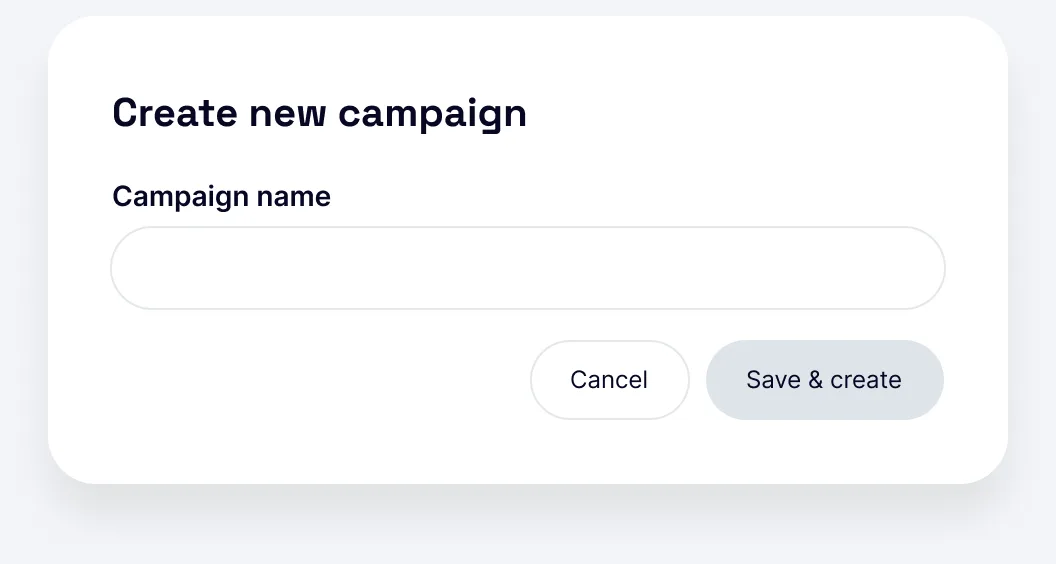
Click Create Campaign, enter a Name and click Save & create. The new campaign opens.
Existing campaign
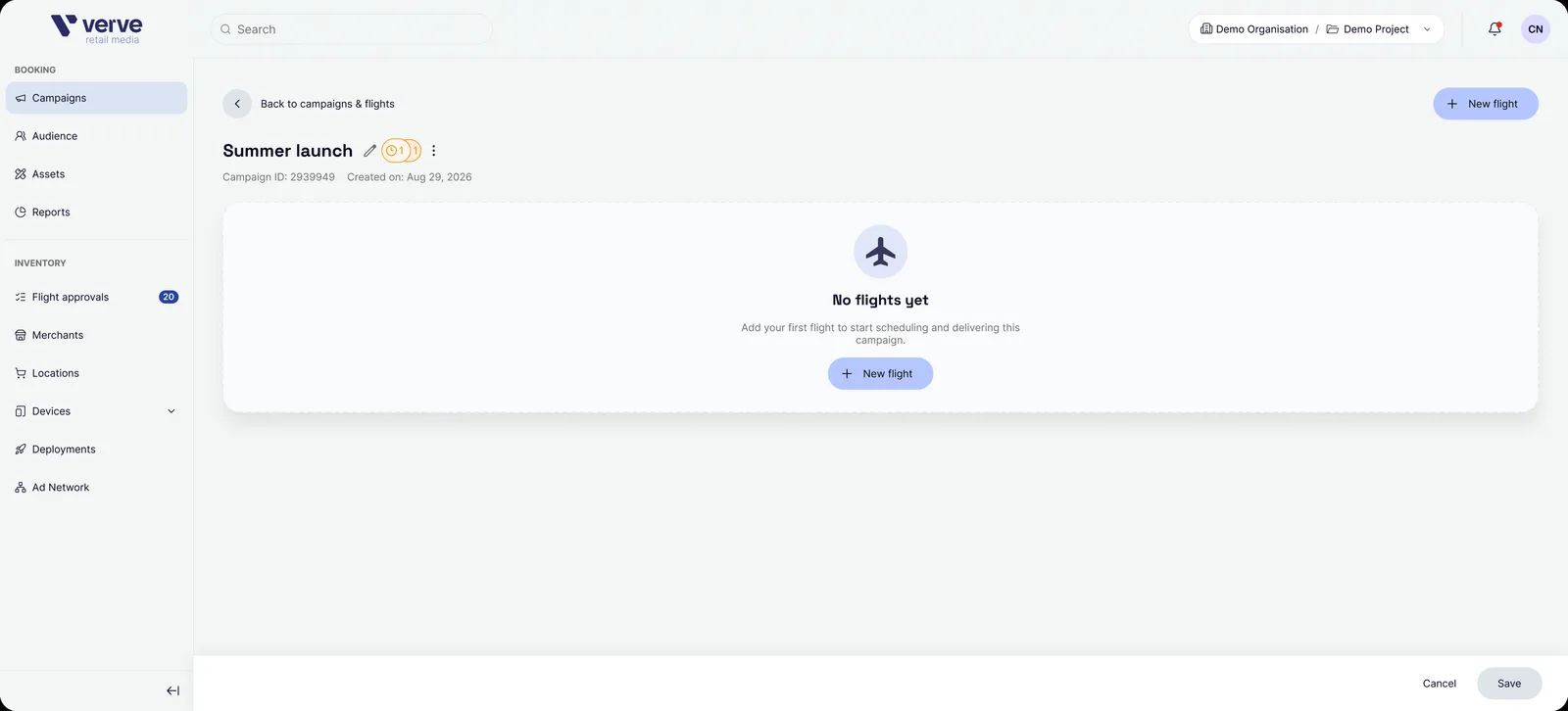
Go to Booking › Campaigns and click the name of the campaign.
Then click New flight 1.
 11
Fill in the flight details
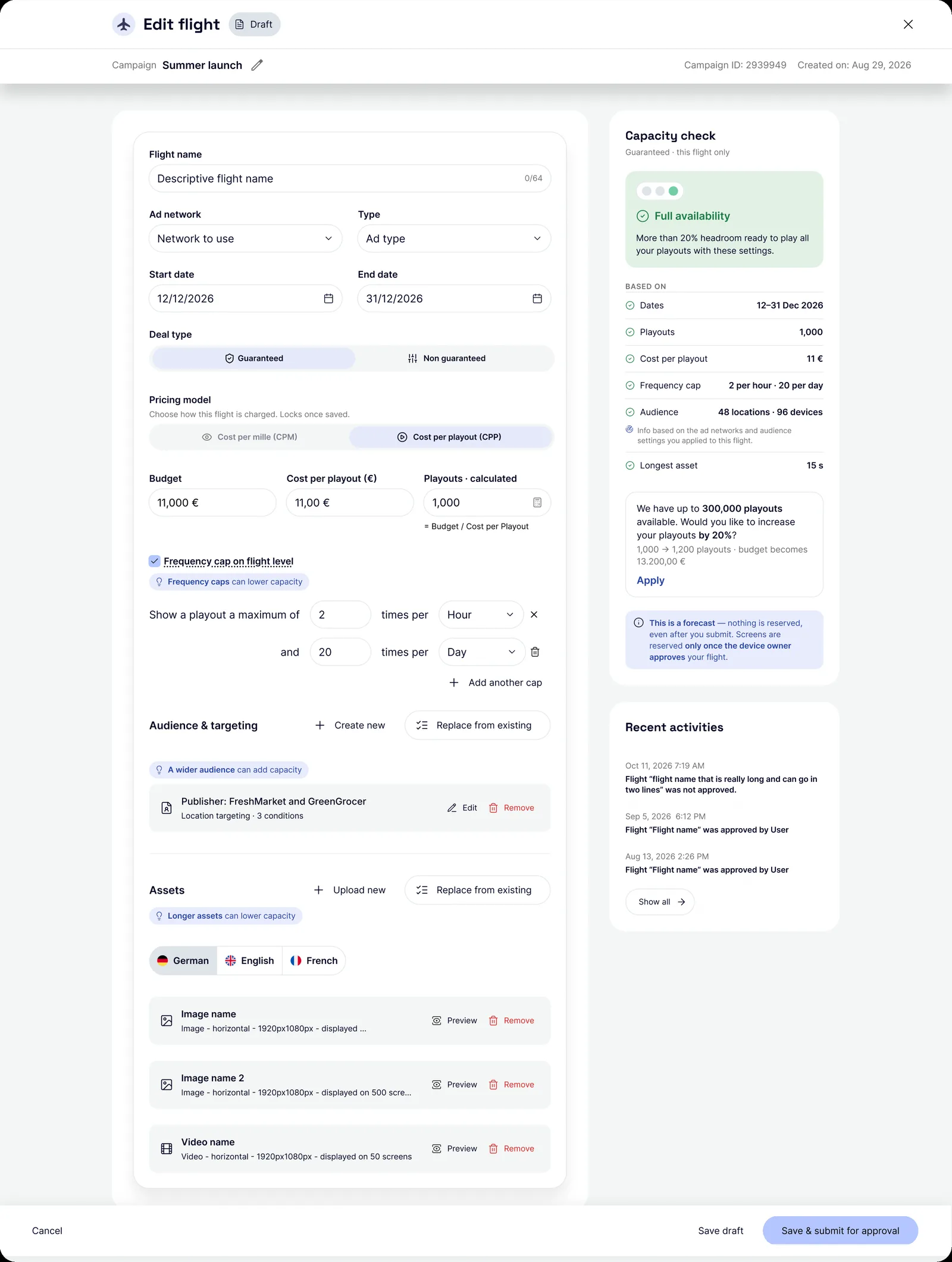
First enter the Name of the flight, the Ad network, the Start date and the End date. The Flight order ID is optional.
- 1Deal type: choose Guaranteed.
- 2Pricing model: a guaranteed flight is always priced per playout, so the form selects Cost per playout (CPP) for you. You pay each time your ad plays, and the flight promises playouts. Cost per mille (CPM) is greyed out. It’s only for non-guaranteed flights.
- 3Budget (€), Cost per playout (€) and Playouts are connected. Change one, and the others follow. Playouts are whole numbers, so the budget buys only the playouts it fully covers.11,000 €Budget÷11 €Cost per playout=1,000Playouts
- 4Frequency cap on flight level, Audience & targeting, Ad products and Assets: these affect your capacity. See step 3. The frequency cap is optional. The other three are required.
 1234
Read the capacity check
The capacity check on the right of the form tells you if there are enough free devices, with enough free screen time, to play your ad.
A frequency cap isn’t needed for the check. If you set one, the check takes it into account.
Enough room available to deliver all your playouts with these settings.
Your flight fits, but demand for these screens is high. Submit soon — screens are only reserved once partners approve.
Not enough room free to play your ads. Change your settings to submit this flight.
Take a suggestion with one click
Under the settings it’s Based on, the check can suggest a number of playouts that fits. Click Apply, and your playouts and your budget update for you.
While it checks
Takes up to 15 seconds. Meanwhile you can’t edit the flight or submit it, but you can save it as a draft.
You changed a setting after the first check. The check doesn’t run again by itself. Click Check now.
The check couldn’t run. Click Try again. You can still save the flight as a draft.
It’s a forecast. Nothing is reserved, even after you submit. Screens are reserved only once the device owner approves your flight.
Not enough capacity? Try this
The check tells you exactly how many fit.
More days give your ad more free screen time.
Some devices cost more than your current price. A higher cost per playout can add them.
Add more locations or ad networks to reach more devices.
Strict caps make it harder to find screens that fit.
After each change, click Check now to see the new result. If you change only the budget or the playouts, you don’t need a new check.
Submit for partners’ approval
Click Save & submit for approval. The device owners then review your flight.
Screens are reserved only once the device owners approve your flight. Submit soon so they have enough time to approve. If time passes, someone else may take this space, and your flight can no longer be guaranteed.
A guaranteed flight can’t be submitted. Change your settings, or click Save draft to finish later.
What partners see and do: Approve a flight.
How approval works
Your flight runs on devices owned by different partners. Each device owner decides on their own whether to approve your flight on their devices. Only device owners with at least one device in the flight’s audience are asked to approve; everyone else isn’t involved.
The status of your flight changes with each decision. See what each status means.
Edit a flight after you submit it
To change a flight that you’ve sent for approval, take it back first.
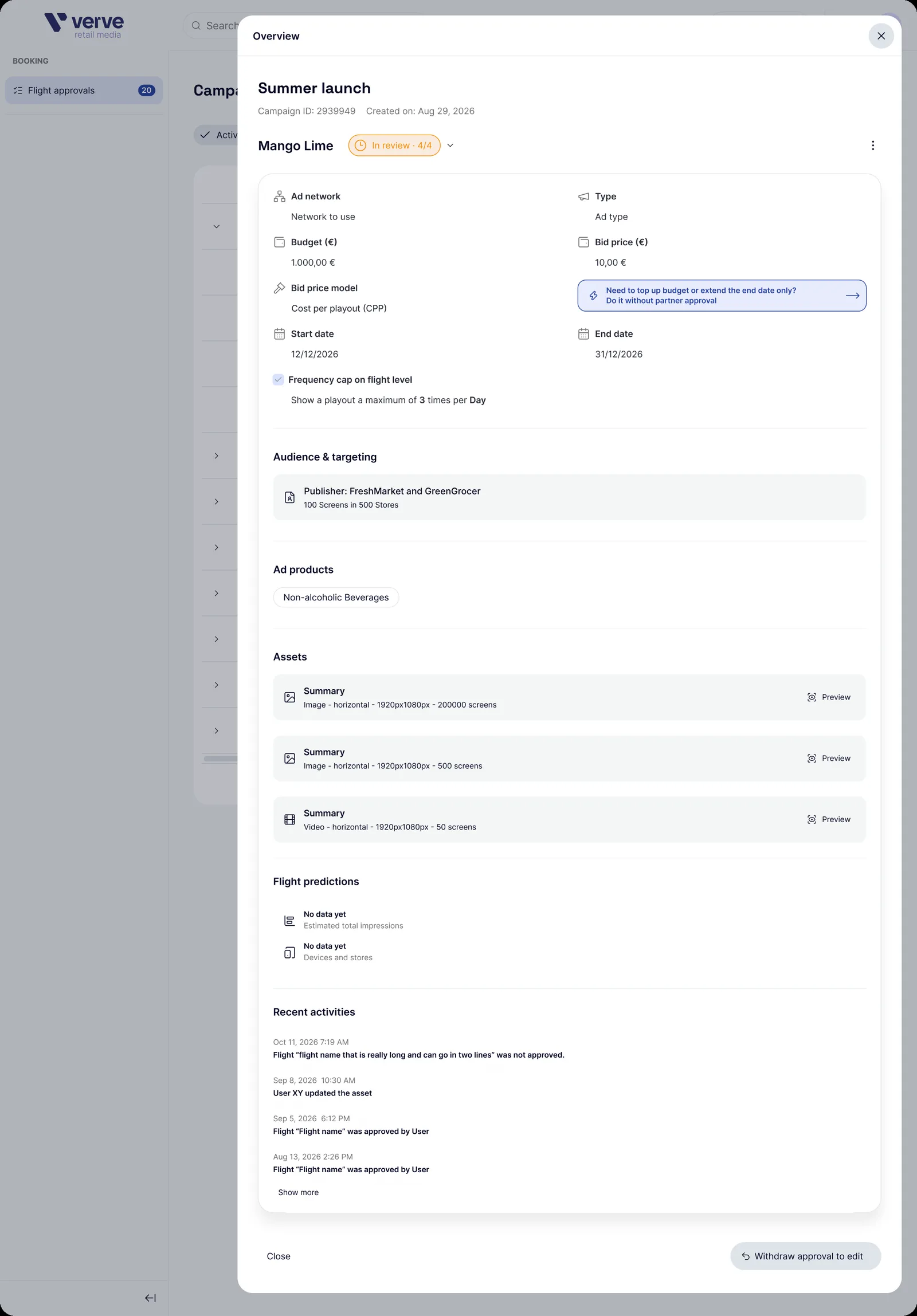
- 1Withdraw approval to Edit
Click the flight to open its Overview, click the button at the bottom and confirm with Yes. The flight goes back to Draft
- 2Edit the flight
The flight form opens. Change anything you need.
- 3Submit again
Click Save & submit for approval. You need new approvals from all partners, including those who already approved it.
 1
Only need more budget? Don’t withdraw. In the flight’s Overview, click Need to top up budget only? and add the amount. This needs no new partner approval. Every other change does.
← Understand campaigns and flights