

Edit a location and understand conflicts
Spotted store information that isn’t right? Flag an issue and propose the correct information. A person at Verve Retail Media checks it and updates the store.
Even if a location has a conflict, you can keep using it as usual. It doesn’t affect your work in any way.
1. Flag an issue
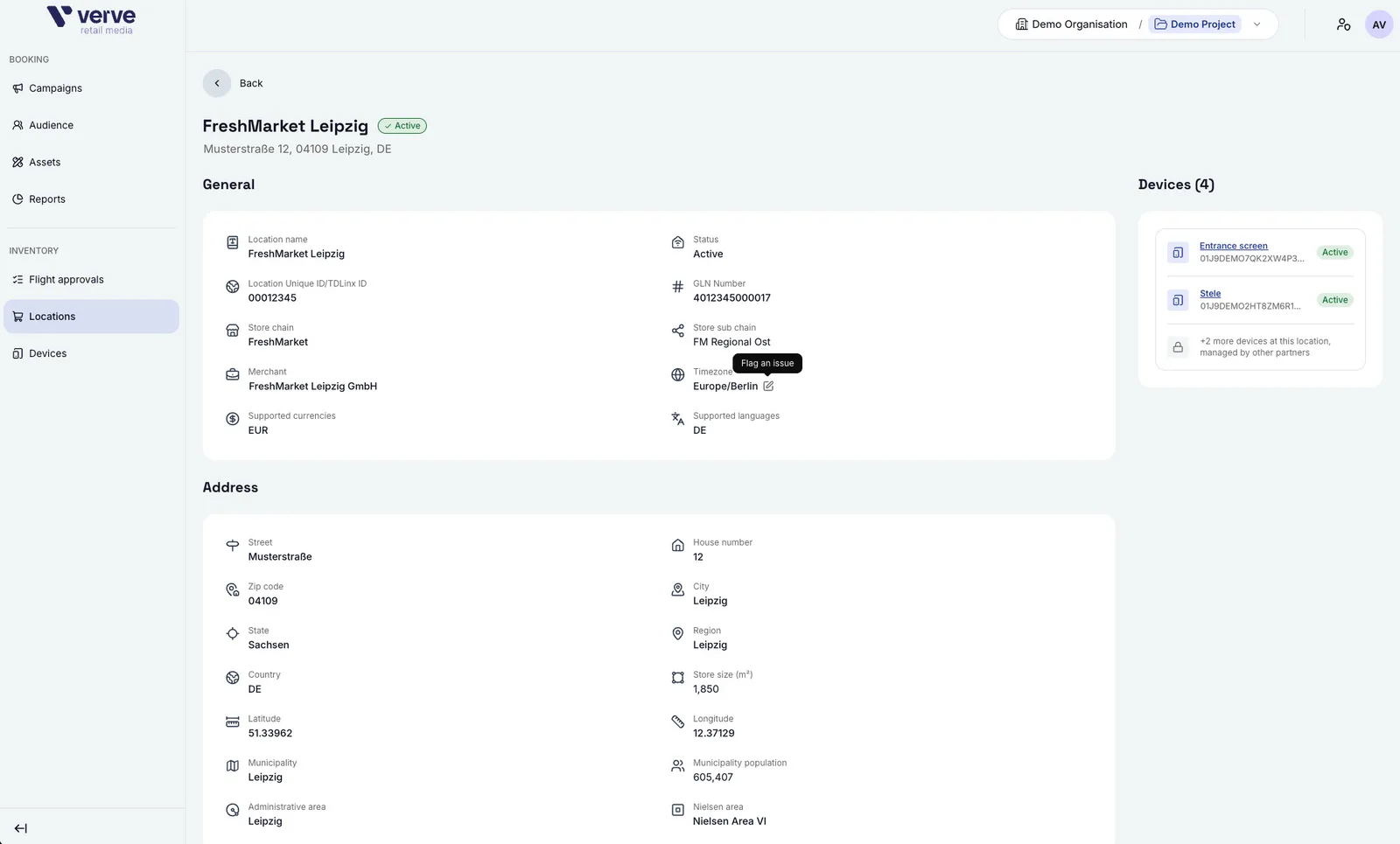
Open a store from Inventory › Locations. Hover any piece of information to show the Flag an issue icon 1. Use it when you disagree with information on an existing store.
Two pieces of information have no Flag an issue icon: the Location Unique ID/TDLinx ID, which can’t be changed after the location is created, and the Status. If you see no icon at all, your role doesn’t allow you to edit locations.
 1
2. Propose the correct information
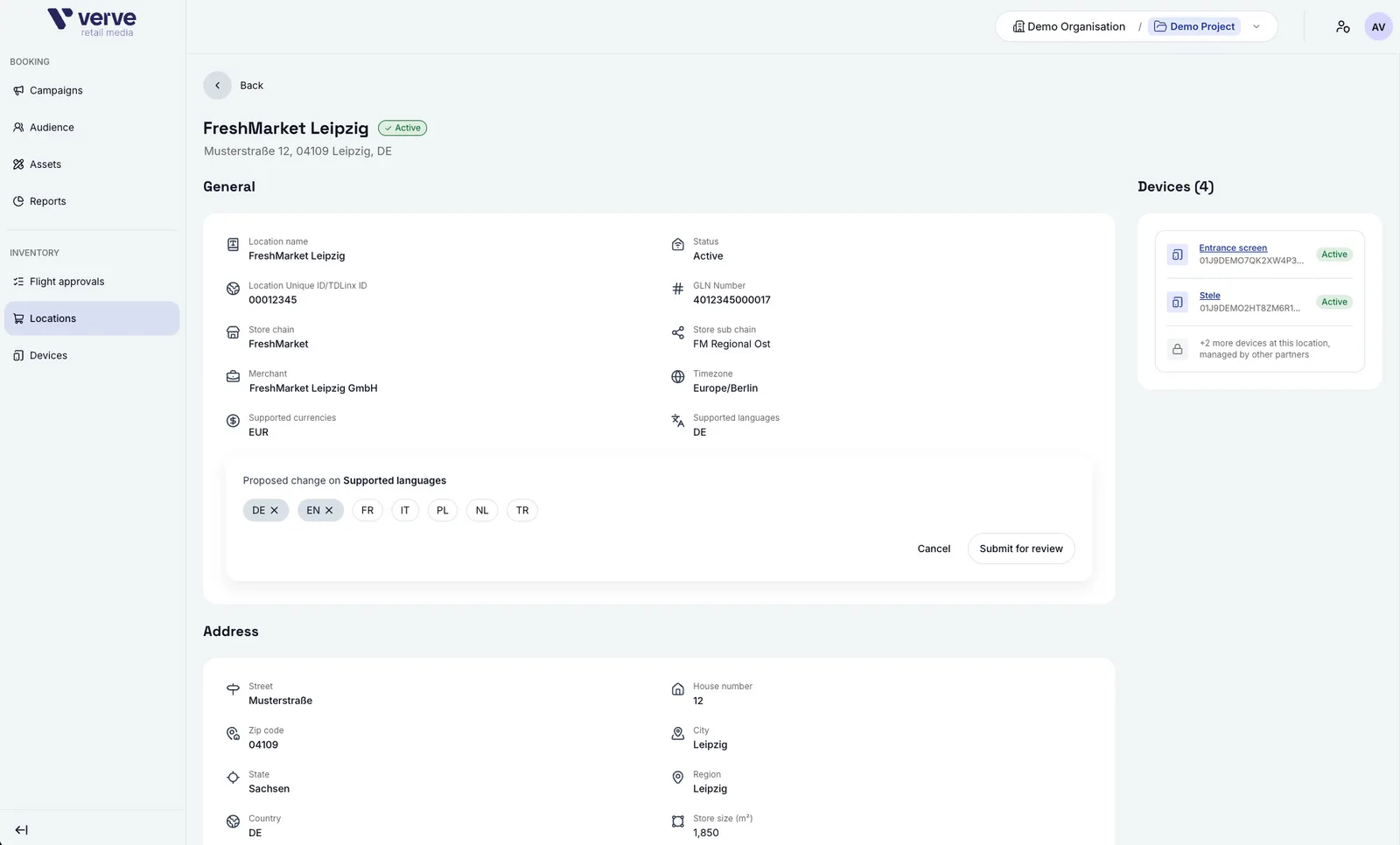
For example, the store’s Supported languages show only German (DE), but the store supports English too.
- 1Click Flag an issue next to Supported languages, and add EN.
- 2Click Submit for review.
 12
If your project added the store, the card is called Edit … and the button is Save.
3. Your change waits for review
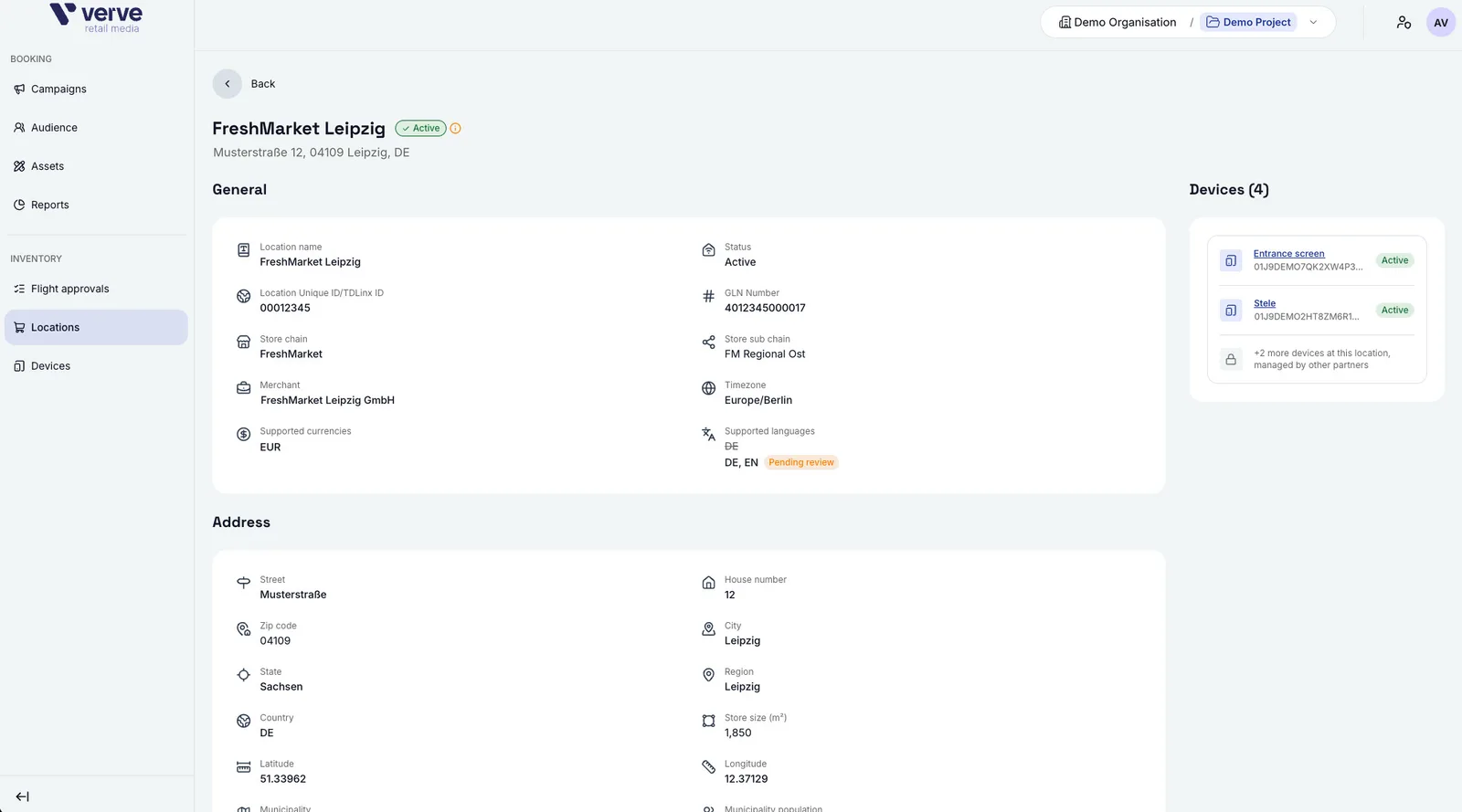
The previous information is crossed out, and your change appears with a Pending review badge 1.
 1
What’s a location conflict?
When someone flags an issue, the location has a conflict: two versions of the same information. A location with a conflict shows a warning icon next to its status.
A conflict resolver, a dedicated person at Verve Retail Media, checks which information is correct and updates the store.