

Distribution approvals
Understand who is asked to approve a flight, how each device owner decides on its own, how the flight status follows the decisions, and what is locked after you submit.
What it’s for
A flight plays on devices that belong to different partners. Before your flight can play on a partner’s devices, this partner has to approve it. This is the flight approval. In the platform, the list of all partner decisions for one flight is called Distribution approvals from partners.
There’s no single yes or no for the whole flight. Each partner decides for its own devices only. So a flight can play in the stores of one partner while another partner is still looking at it.
In short
- Only partners with at least one device in the flight’s audience are asked to approve.
- Each partner decides on its own: Approve or Decline and request changes.
- The flight plays only on the devices of partners who approved it.
- After you submit, the flight is locked. To change it, withdraw it first. All partners then have to approve it again.
Who is asked to approve
When you click Save & submit for approval, the platform looks at the flight’s audience and finds the partners who own the devices in it. Each of these partners gets the flight in its list under Inventory › Flight approvals.
- Only partners in the audience are asked. A partner without an active device in the flight’s audience isn’t asked and doesn’t see the flight.
- One decision per partner. The decision is made for the whole organisation of the partner, and it counts for all its devices in the audience.
- The list is fixed when you submit. The partners are found again each time you submit the flight.
- The people who decide have the Flight Approver role.
You can’t submit a flight if its audience reaches no active device of any partner. The flight then stays a draft, and you can change the audience.
How each partner decides
A partner opens the flight with Review and sees its details, the audience and the assets. Then the partner has two choices.
| Decision | On this partner’s devices | For other partners |
|---|---|---|
| Approve | The flight can play. It starts on its start date, or at once if the start date has passed. | Nothing changes. Each of them still decides on its own. |
| Decline and request changes | The flight doesn’t play. If it played there before, it stops. | Nothing changes. The flight keeps playing where it’s approved. |
| No decision yet | The flight doesn’t play. | Nothing changes. |
- A partner can change its decision. After approving, a partner can still click Decline and request changes. After requesting changes, a partner can still click Approve. This is possible until the flight is completed or terminated.
- A request for changes always has a reason. See Change request reasons.
- Partners don’t see each other’s names. An approver sees the decisions of the other partners, but not who they are. As the booker, you see the names of all partners.
- A decision is for the version that was submitted. If you withdraw or submit the flight again while a partner is reviewing it, the partner’s decision isn’t saved. The partner has to review the flight again.
How the flight status follows the decisions
The flight status is one status for the whole flight. It changes as the partners decide.
| What happened | Flight status |
|---|---|
| You submitted the flight, and no partner approved it yet | In review |
| At least one partner approved, and the start date is in the future | Scheduled |
| At least one partner approved, and the start date is reached | Live. With more than one partner, the status also shows how many approved, for example ‘Live · 1/3’. |
| A partner requested changes | A red flag is shown next to the status. A flight that is live stays Live. Any other flight shows In review until you make the changes. |
| You withdrew the flight | Draft |
Click the status to open Distribution approvals from partners. It shows how many partners approved, and the status of the flight with each partner.
Guaranteed flights need enough approved devices
A guaranteed flight promises a number of playouts or impressions. It becomes Scheduled or Live only when the devices of the partners who approved can deliver this number together. Until then it stays In review, also after the first approval. If all partners have decided and their devices can’t deliver the number, the flight gets the status Error. Withdraw it, change it and submit it again. A non-guaranteed flight has no such check: the first approval is enough.
What is locked after you submit
You can edit a flight only while it’s a draft. When you submit it, the flight is locked, so that partners approve exactly what will play.
| What | After you submit |
|---|---|
| All fields of the flight form, for example dates, price, frequency caps, audience and assets | Locked. Withdraw the flight to change them. |
| The audience | The flight keeps the audience as it is at the moment you submit. If you edit the audience later, the submitted flight doesn’t change. |
| The assets | The flight keeps the assets as they are at the moment you submit. If you edit an asset later, the submitted flight doesn’t change. Partners see and approve these versions. |
| Budget of a non-guaranteed flight | You can raise it without a new approval. Use Need to top up budget only? in the flight. You can’t lower it. |
| Budget of a guaranteed flight | Locked, because the budget sets what the flight promises. |
| Flight order ID | Not locked. You can change it in every status. |
| Delete flight | Not possible. A flight can only be deleted while it’s a draft. |
Withdrawing a flight
Withdrawing takes the flight back from all partners, so that you can edit it. You can withdraw a flight that is In review, Scheduled, Live, Paused or in Error.
- The flight goes back to Draft. You can edit all fields again.
- It stops playing everywhere. A draft doesn’t play on any device, also not on the devices of partners who had approved it.
- All decisions end. The flight leaves the list of every partner. Approvals and change requests of this round no longer count.
- Reserved capacity is released. For a guaranteed flight, the screen time that was held for it is free again for other flights.
- Submitting again starts from zero. You need new approvals from all partners, including those who had already approved. The flight takes the audience and the assets as they are at that moment.
How to use it
The guides Book a guaranteed flight and Approve a flight show every step with screenshots. This is how you change a flight that you already submitted:
- 1Open the flight under Booking › Campaigns and click Withdraw approval to Edit. Confirm with Yes. The flight goes back to Draft and opens for editing.
- 2Change what you need.
- 3Click Save & submit for approval. All partners in the audience are asked again.
- 4Click the flight status to follow the decisions under Distribution approvals from partners.
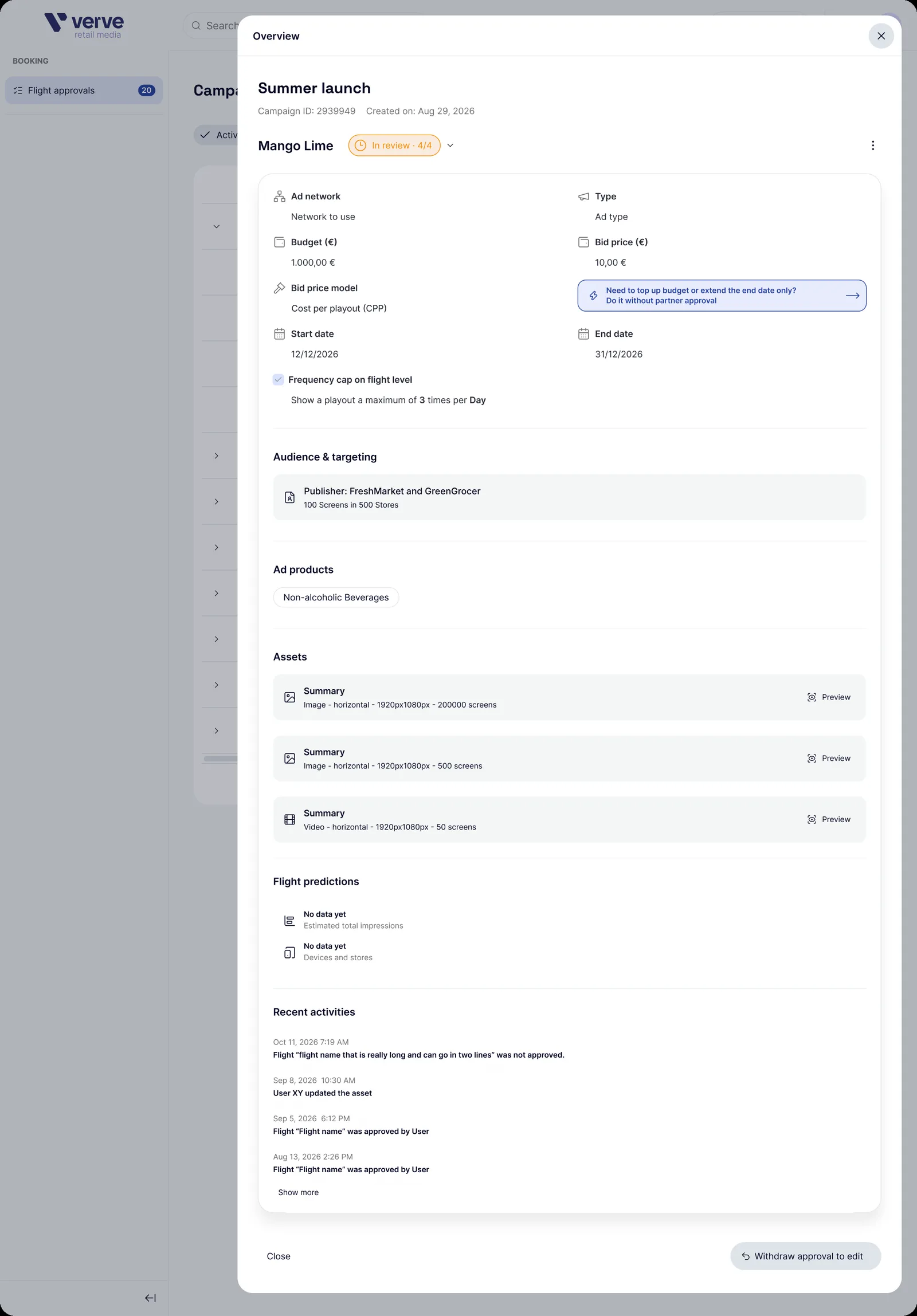 1
You can also withdraw from the flight’s menu, without opening the editor: Withdraw submission for a flight that is In review, or Withdraw approval for a flight that is already approved.
Fields and rules
| Where | Label | What it does |
|---|---|---|
| Flight form | Save & submit for approval | Locks the flight and sends it to all partners in its audience. |
| Flight approvals | Approve | Lets the flight play on your devices. |
| Flight approvals | Decline and request changes | Keeps the flight off your devices and sends your reason to the booker. |
| Flight | Withdraw approval to Edit | Takes the flight back to Draft and opens it for editing. |
| Flight menu | Withdraw submission or Withdraw approval | Takes the flight back to Draft. |
- One approval doesn’t start the flight everywhere. The flight plays only on the devices of partners who approved, and only between its start and end date.
- A change request doesn’t stop the flight elsewhere. It keeps playing on the devices of the partners who approved.
- Every change needs a new round. Except for the budget top-up and the flight order ID, you can’t change a submitted flight without withdrawing it.
- Nothing is reserved before approval. For a guaranteed flight, the capacity check is a forecast. Screens are reserved only when the device owners approve.
- A terminated flight leaves approval. When you terminate a flight, it stops on all devices and partners can no longer decide on it.
Related
- Glossary: Flight approval, Flight Approver, Partner, Flight status
- How-to guides: Approve a flight, Book a guaranteed flight, Book a non-guaranteed flight, Campaigns overview
- Feature pages: Change request reasons, Targeting conditions, Frequency cap