

Targeting conditions
Understand the four types of condition in an audience, how AND and OR combine them, and what decides where and when your ad plays.
What it’s for
A targeting condition is one rule in an audience, for example ‘FreshMarket stores’, ‘postal code 10115’ or ‘women aged 25-29 in front of the screen’. Together, the conditions decide which devices can play your ad, and in which moments.
Conditions only make an audience smaller. You start with every device in the audience’s ad network, and each condition takes devices or moments away. An audience without conditions reaches all devices in its ad network.
In short
- There are four types of condition: Publisher, Store, Demographic and Devices.
- Conditions in one targeting group are joined by AND: a device has to match all of them.
- Targeting groups are joined by OR: a device has to match only one group.
- Publisher, Store and most of Devices choose the devices. Demographic and Basket SKUs choose the moment, and need a sensor.
How conditions combine
You build the targeting under Targeting logic. It has three levels, and each level combines in its own way.
| Level | Joined by | What it means |
|---|---|---|
| Targeting groups in an audience | OR | A device is in the audience when it matches at least one group. Each new group makes the audience bigger. |
| Conditions in a targeting group | AND | A device has to match every condition in the group. Each new condition makes the group smaller. |
| Fields in one condition | AND | A device has to match every field you fill in. A field you leave empty doesn’t limit anything. |
| Values in one field | OR | One of the values is enough. Two postal codes mean ‘stores in either postal code’. The only exception is Basket SKUs, where all values are needed. |
Example: one group has a Publisher condition for FreshMarket and a Store condition with State Berlin and Store size Supermarket and Hypermarket. A second group has a Publisher condition for GreenGrocer. The audience reaches FreshMarket supermarkets and hypermarkets in Berlin, and all GreenGrocer stores.
Two conditions of the same type narrow each other
Two Store conditions in one group are joined by AND, like all conditions. A Store condition for Berlin and a second one for Hamburg match no store, because no store is in both. To reach both states, put them in two targeting groups.
The four types of condition
Publisher
Chooses the retailers whose stores you want, and optionally their sub chains.
- Several retailers are joined by OR. FreshMarket and GreenGrocer in one condition reach the stores of both.
- No sub chain means the whole retailer. The condition then shows All. If you pick sub chains, only stores of these sub chains match.
- One Publisher condition per group. It can hold as many retailers as you need. To add a retailer, edit the condition.
Store
Chooses stores by where they are and what kind of store they are. All fields are optional.
| Field | What it matches | Rule |
|---|---|---|
| Postal codes | The postal code in the store’s address | One per line, 1 to 10 digits each, up to 1,000 codes. You can also use Bulk upload with a .txt or .csv file. |
| Location ID | The external ID of the location | One per line, 1 to 10 digits each, up to 1,000 IDs. You can also use Bulk upload. |
| State | The state in the store’s address | One state per condition. |
| Nielsen Area | The Nielsen area of the store | One or more areas, from Nielsen Area I to Nielsen Area VII. Areas V and VI are one option, Nielsen Area V+VI. |
| Store personas (Population) | The kind of place the store is in | Urban, Rural or Metropolitan (> 100k). |
| Store size | The sales area of the store | Convenience (under 500 m²), Consumer market (500 – 2,000 m²), Supermarket (2,000 – 5,000 m²) or Hypermarket (5,000 m²+). |
Store conditions use the data of the location. A store without a sales area doesn’t match any Store size, and a store without a Nielsen area doesn’t match any Nielsen Area.
Demographic
Chooses who has to be in front of the screen. Your ad plays only in the moments when the sensor detects these people.
Each row describes one group of people with three fields:
| Field | Options | If you leave it empty |
|---|---|---|
| Gender | Female or Male | Any gender matches. |
| Age range | 13 ranges, from 18-20 to 75+ | Any age matches. |
| Number of people | Exactly, Fewer than, At most, More than or At least, with a whole number from 1 to 20 | With Any, one person is enough. |
- The fields in one row are joined by AND. Female, 25-29 and At least 2 means: at least two women aged 25-29.
- The rows are joined by OR. Click Add people for another row. Your ad plays when one of the rows matches.
- The number counts the people you describe. With a gender or an age range, only the people of this gender and age are counted. Without both, everyone in front of the screen is counted.
- Only devices with a demographics sensor. A device without this sensor is not in the audience, because it can’t tell who is in front of it. A device with only an Advertima sensor is not included either.
- No detection, no playout. If the sensor reports nobody, or nothing at all, the condition doesn’t match and your ad doesn’t play.
The panel shows your rows as one sentence under In plain words, so you can check that it says what you mean.
Devices
Chooses the kind of device, the place of the screen in the store, and what is in the shopper’s basket.
| Field | What it matches | Rule |
|---|---|---|
| Devices | The type of the device, for example Checkout TV or Stele | Several types are joined by OR. |
| Open OOH | The venue type of the device | Several picks are joined by OR. A pick includes everything below it: Retail › Grocery also matches a device in Retail › Grocery › Aisles › Bakery. |
| Basket SKUs | The products in the shopper’s basket | The basket has to hold all SKUs you list. Only devices with a basket sensor are in the audience. |
A device with a location sensor reports where it is each time it asks for an ad. It is included in every audience with an Open OOH selection, and it plays your ad only while it is in a place you selected.
Which devices, and which moments
Not all conditions work in the same way. Some describe the device and its store. Others describe a moment.
| Condition | Decides | Based on |
|---|---|---|
| Publisher, Store, Devices type and Open OOH | Which devices are in the audience | The data of the device and its location. It’s the same for every playout. |
| Demographic and Basket SKUs | In which moments these devices play your ad | What the sensor detects at this moment. It can change from one playout to the next. |
An audience holds the devices that could play your ad. With a Demographic condition or Basket SKUs, these devices play it only when the right people or products are detected. Expect fewer playouts than the number of devices suggests. The Audience summary and the Estimated impressions, Store and Screens columns in the audience list don’t show these numbers yet.
How to use it
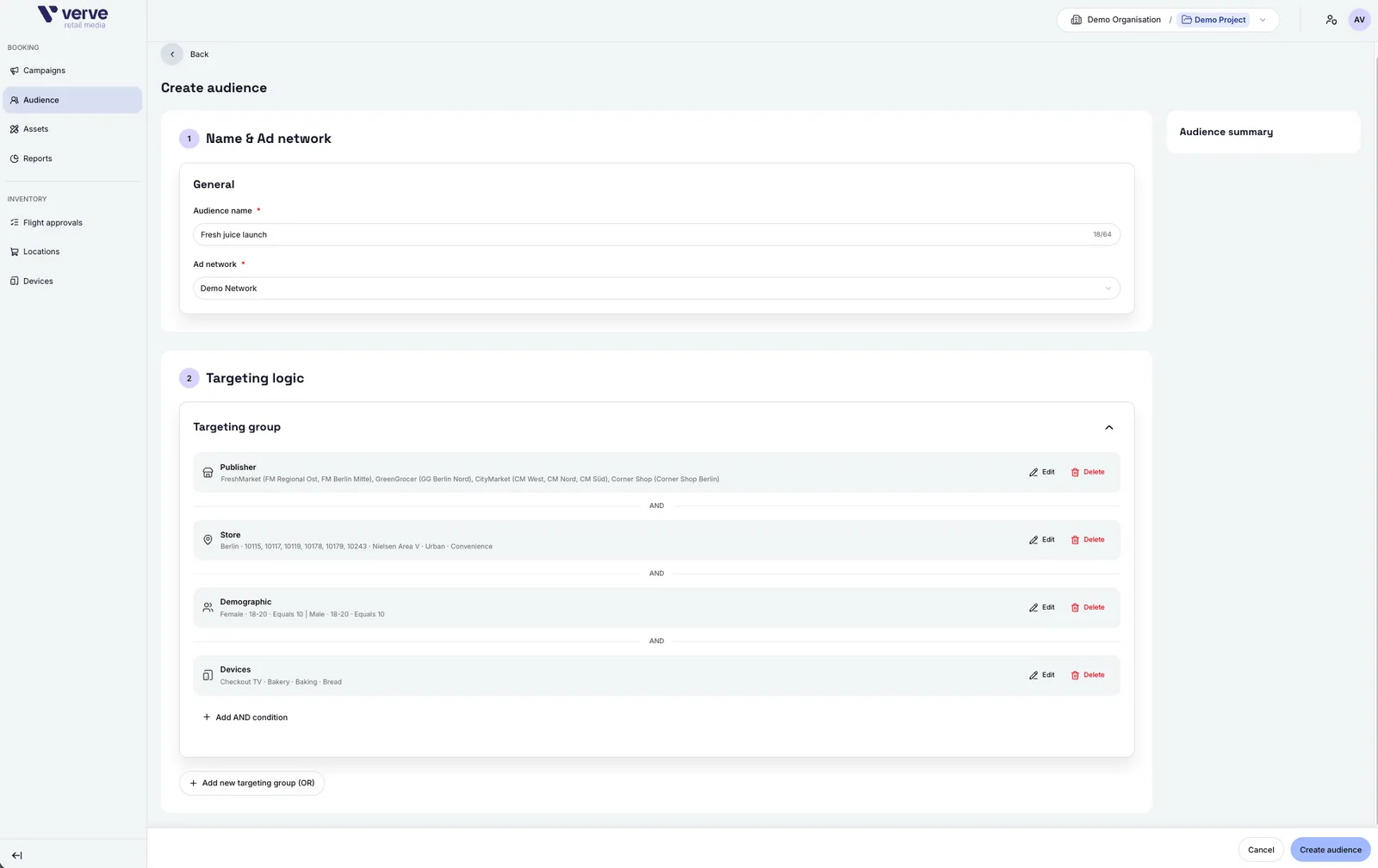
You add conditions in the audience form, under Booking › Audience. The guide Build an audience shows every step with screenshots. This is how the targeting logic looks when it’s built:
- 1Each condition shows up as a short summary. The conditions of one targeting group are joined by AND.
- 2Edit or Delete a condition with the buttons on its row.
- 3Add AND condition adds another condition to this group.
- 4Add new targeting group (OR) starts a new group.
- 5Create audience, or Save audience when you edit, stores the audience.
 12345
Fields and rules
| What | Limit |
|---|---|
| Audience name | Required. Up to 64 characters. |
| Ad network | Required. One ad network per audience. |
| Conditions | Optional. An audience without conditions reaches all devices in its ad network. |
| Publisher conditions per targeting group | 1, with any number of retailers |
| Demographic conditions per targeting group | Up to 4 |
| Devices conditions per targeting group | Up to 4 |
| Postal codes and Location ID per Store condition | Up to 1,000 each, 1 to 10 digits per entry |
| Number of people | A whole number from 1 to 20 |
- The ad network comes first. Conditions only choose among the devices of the audience’s ad network. In a flight, you can select only the audiences of the flight’s ad network.
- An empty Demographic row is ignored. A row without gender, age range and number isn’t saved.
- A submitted flight keeps its audience. When you submit a flight for approval, it keeps the audience as it is at that moment. If you edit the audience later, flights that are already submitted don’t change.
- The audience decides who approves. Only device owners with at least one device in the audience are asked to approve your flight. See flight approval.
- A narrow audience can lower capacity. For a guaranteed flight, fewer devices or rare moments mean fewer possible playouts. Check the Capacity check in the flight form.
Related
- Glossary: Audience, Ad network, Sensor, Venue type, Capacity
- How-to guides: Build an audience, Book a guaranteed flight, Book a non-guaranteed flight
- Feature pages: Frequency cap