

Ad networks for organisations and projects
Understand how ad networks are passed down from the tenant to the organisation and to each project, who can change them, and what happens when you remove one.
What it’s for
An ad network is a group of screens your ads can run on. Not every project should book on every ad network. With the Ad network setting, you decide which ad networks a project can use.
A project can use an ad network only when its organisation has it. And an organisation can have an ad network only when its tenant has it. Each level can pass on all of its ad networks, or only some.
In short
- Ad networks are passed down in three steps: tenant, then organisation, then project.
- Verve sets the ad networks of your organisation. An Admin chooses the ad networks of each project.
- A new project starts with no ad networks. Add them in project settings.
- You can’t remove an ad network from a project while active flights in the project still use it.
Three levels
| Level | Its ad networks | Who changes them |
|---|---|---|
| Tenant | All ad networks that exist for your region or business group. | Verve |
| Organisation | All ad networks of the tenant, or only some of them. | Verve. To change them, contact your Verve account manager. |
| Project | All ad networks of the organisation, or only some of them. | An Admin of the organisation, in project settings. |
Example: a media agency has one organisation with the ad networks FreshMarket and GreenGrocer. Its project for client A gets both. Its project for client B gets only GreenGrocer. People who work in project B can’t build audiences or book flights on FreshMarket screens.
What the setting changes
In a project, you can pick only the ad networks of this project. You pick an ad network in an audience, for where it will be used, and in a flight, for where it runs.
- A project without ad networks can’t book. There’s no ad network to pick in an audience or a flight, so add at least one before your team starts.
- The setting belongs to one project. When you add or remove an ad network in one project, the other projects of the organisation don’t change.
- An audience can lose its ad network. If an audience uses an ad network that the project no longer has, the audience form asks you to pick a new one before you save.
How to use it
Only Admins can change the ad networks of a project.
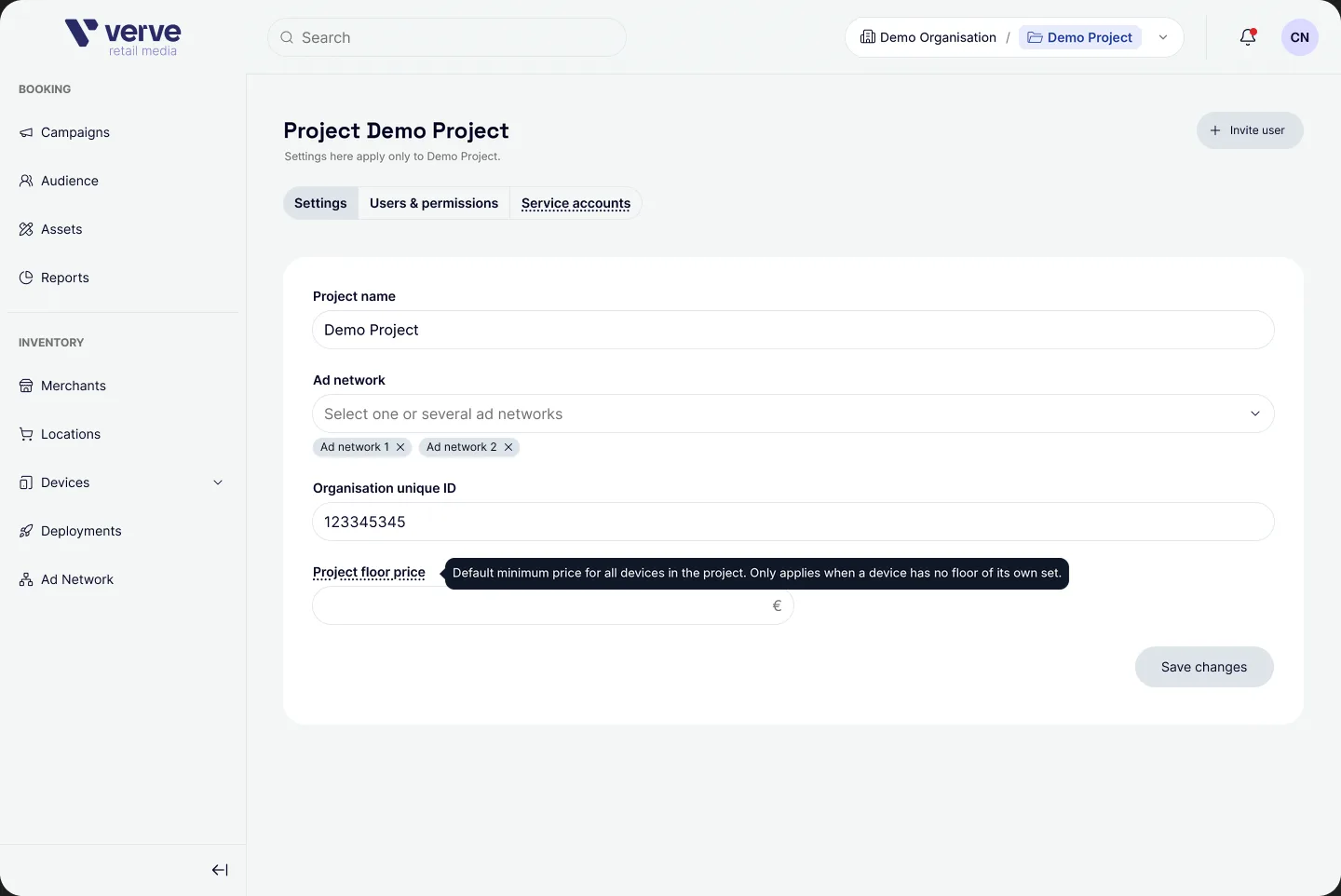
- 1Choose the project in the top-right corner, then click the project name to open project settings.
- 2In Ad network, select one or several ad networks. The list offers the ad networks of your organisation. To remove one, click the × on its tag.
- 3Click Save changes.
 123
Organisation settings show the same Ad network field for the whole organisation. There you can see the ad networks, but you can’t change them. The field tells you to contact your Verve account manager.
If you aren’t an Admin, you can’t open project settings. Ask an Admin of your organisation for a change.
Fields and rules
| Field | Required | Rule |
|---|---|---|
| Ad network | No | One or several ad networks. Only ad networks of the organisation can be selected. |
- You can’t remove an ad network that is in use. While active flights in the project use an ad network, saving fails and the message names the ad network. Stop these flights or wait until they end, then remove it.
- A new project is empty. When you add a project, it has no ad networks. Add them in project settings when the project shows up.
- A project can’t have more than its organisation. If you need an ad network that isn’t in the list, your organisation doesn’t have it. Ask your Verve account manager.
Related
- Glossary: Ad network, Tenant, Organisation, Project
- How-to guides: Understand organisations and projects, Build an audience
- Feature pages: Targeting conditions, Organisation and project roles