

Shareable report links
Share a report as a link that opens with the same project and filters, and understand who can open the link and what they see.
What it’s for
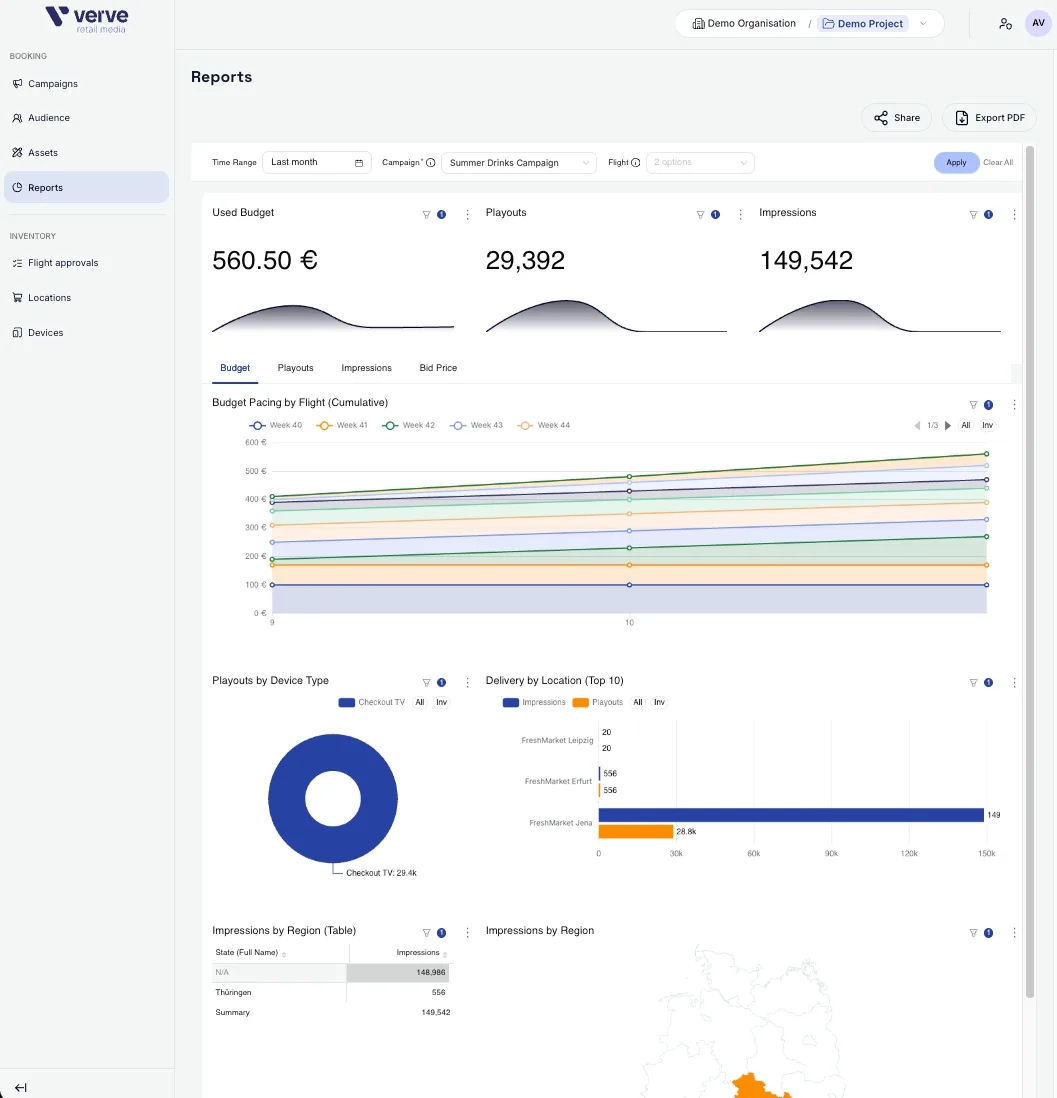
With Share, you copy a link to the report you are looking at. Whoever opens the link sees the report with the same filters, so they don’t have to set them up again. It’s the quick way to show a colleague exactly the view you mean.
The link is for people who work on the platform with you. It is not a public link. To send a report to someone without an account, use a PDF: see Report exports.
In short
- Share copies a link to your clipboard. You paste it into an email or a chat yourself.
- The link opens the same report, in the same project, with the same filters.
- The reader has to log in and needs access to the project and to reports.
- The link saves the view, not the numbers. The reader sees the numbers of the moment they open it.
What the link saves
The link remembers the view of the report at the moment you click Share.
| Saved in the link | What the reader gets |
|---|---|
| The report | The same report opens. |
| The project | The platform switches to the project of the report, if the reader has access to it. |
| The filters | Time Range, Campaign and Flight are set as you had them. |
| The open tab | The tab you had open, for example Playouts, is open again. |
- The link holds no numbers. It only describes the view. The report loads its data again each time someone opens the link, so the reader sees the current numbers.
- The link is a copy of this moment. If you change the filters after you shared, the link doesn’t change. Click Share again to get a new link for the new view.
- The report opens at the top. The link doesn’t jump to one chart.
Who can open the link
A report link works only for people who can already see this report on the platform. The link doesn’t give access to anyone.
| The reader | What they see |
|---|---|
| Is not logged in | The login page. A person without an account can’t open the report. |
| Has access to the project and to reports | The report, with your filters. |
| Has no access to the project | You don’t have access to this project. They have to ask you or an Admin for access. |
| Has access to the project, but not to reports | You don’t have access to reports. They have to ask an Admin for a role with access to reports. |
Booking Managers, Booking Viewers and Admins can see reports. To let a client follow a report without changing anything, invite them as a Booking Viewer: see Invite a user.
The reader sees their own data
The report always loads with the access rights of the person who opens the link, not with yours. Nobody sees data through a link that they couldn’t see without it.
How to use it
Open Booking › Reports.
- 1Set the filters: Time Range, Campaign and, if you like, Flight.
- 2Click Apply and wait until the charts show what you want to share.
- 3Click Share. The message Link copied. It opens this report with the same filters. confirms that the link is in your clipboard.
- 4Paste the link into an email or a chat and send it.
 123
If you see The link could not be created. Try again in a moment., wait until the report has loaded completely and click Share again.
Fields and rules
| What | Rule |
|---|---|
| Who can create a link | Everyone who can open Reports: Booking Managers, Booking Viewers and Admins. |
| Who can open a link | Logged-in users with access to the project and to reports. |
| What a link contains | The report, the project, the filters and the open tab. No numbers. |
| Number of links | Each click on Share creates a new link. Older links keep their own view. |
- Share after Apply. The report changes only after you click Apply. Share the view when the charts show what you mean.
- Use the whole link. Copy and paste it completely. A link that is cut off can’t restore the filters.
- For people without an account, use a file. A PDF or a chart download can be opened by anyone you send it to. See Report exports.
Related
- Glossary: Share (report), Project, Booking Viewer
- How-to guides: Read your reports, Invite a user, Understand user roles
- Feature pages: Report exports, Report metrics and breakdowns