

Device status
Understand what Active and Inactive mean for a device, and what happens to audiences and ads when you change the status or delete the device.
What it’s for
Every device has a status: Active or Inactive. The status tells the RMP whether the device takes part in advertising. Use Inactive when a device should stop for a while, for example during a repair or a store refit, and you want to keep it in your list.
In short
- An Active device can be reached by audiences and gets ads.
- An Inactive device is left out of audiences, and the RMP sends it no ads.
- The device’s location has to be active too.
- You can switch between the two at any time. Deleting a device can’t be undone.
Active and Inactive
| Status | In audiences and capacity | Ads |
|---|---|---|
| Active | Included. The device counts for every audience it matches, and for the capacity of flights. | The device gets ads when it asks for them. |
| Inactive | Left out. The device isn’t counted in any audience. | The RMP sends no ads to the device. |
The status is your setting. The RMP doesn’t change it by itself, and it doesn’t show whether the device is switched on or connected.
The location counts too
A device takes part only when it is Active and its location is Active. An active device in an inactive location is left out of audiences and gets no ads, like an inactive device.
How to use it
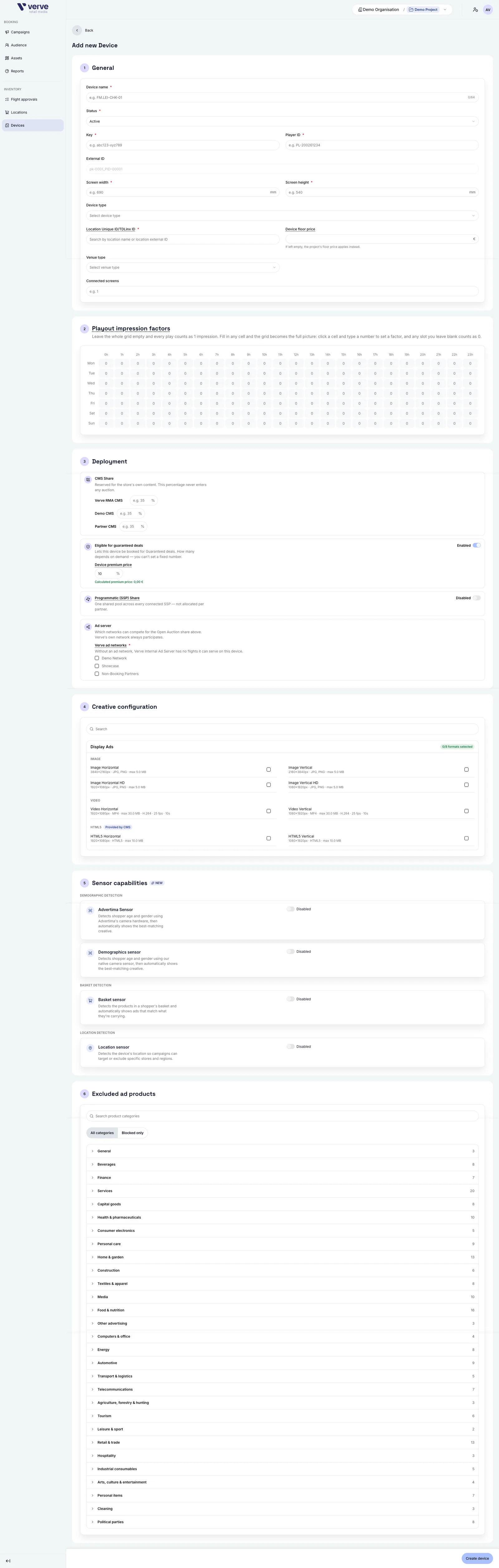
You set the status in the device form. Go to Inventory › Devices and click Add device, or open a device and click Edit device.
- 1In the section General, choose Active or Inactive in Status. A new device starts as Active.
- 2Click Create device, or Save device when you edit.
 12
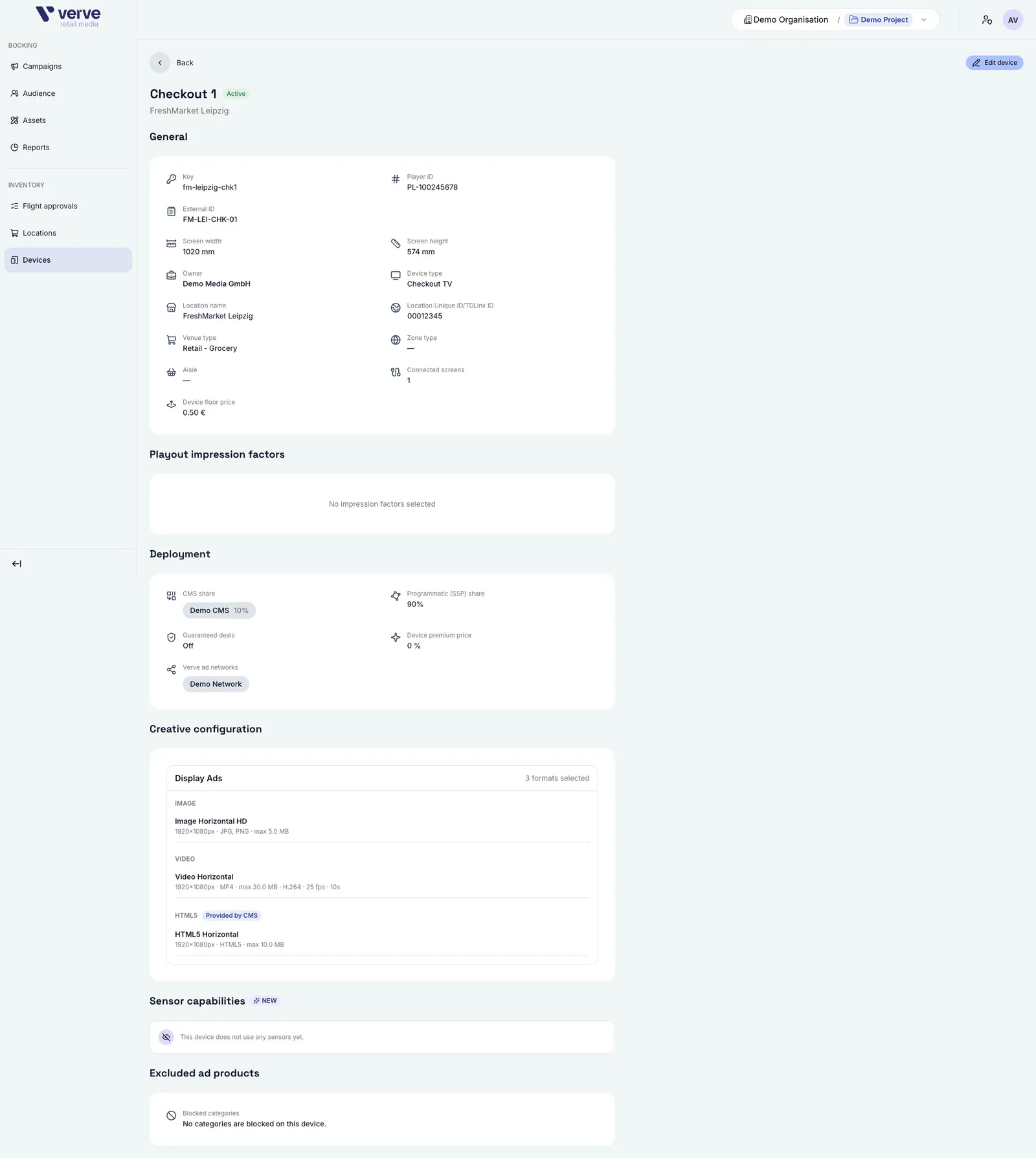
You see the status in the Status column on Inventory › Devices, and next to the name on the device’s page.
 1
Inactive or delete?
To remove a device for good, open its Actions menu on Inventory › Devices and click Delete device. The RMP asks you to confirm.
| Set to Inactive | Delete device | |
|---|---|---|
| The device stays in your list | Yes | No |
| You keep its settings | Yes | No |
| You can undo it | Yes. Set the status back to Active. | No. You have to add the device again. |
If you only want to pause a device, set it to Inactive.
Fields and rules
| Field | Required | Rule |
|---|---|---|
| Status | Yes | Active or Inactive. |
- Inactive devices lower reach. An audience counts fewer devices and screens when you set devices to Inactive. For a guaranteed flight, this can lower capacity.
- The status belongs to the device. All connected screens of a device follow its status.
- A location with active devices can’t be deleted. Set its devices to Inactive or delete them first.
- Key and Player ID stay the same. You can’t change the Key and the Player ID of an existing device. If you delete a device and add it again, enter them again.
Related
- Glossary: Device, Location, Audience, Capacity
- How-to guides: Create a device, Create a location
- Feature pages: Sensors, Targeting conditions
- For developers: Device status in the Inventory API