
Approve a flight
Flights only play on your devices after you approve them. Here’s how to check a flight, then approve it or ask for changes.
Who can do this
You need the Flight Approver role in the organisation that owns the devices. With this role you can approve a flight, or decline it and give a reason.
Find flights waiting for you
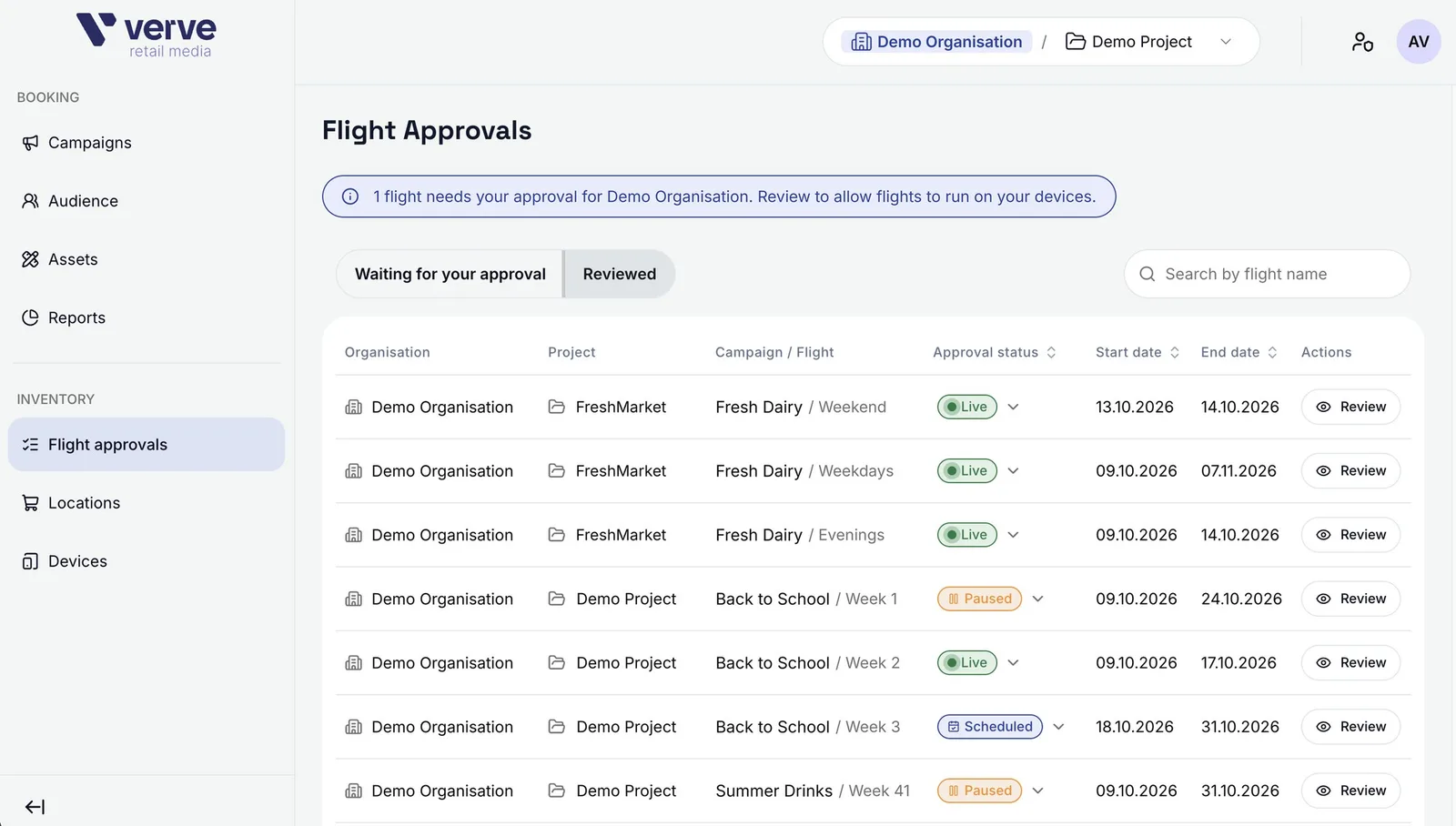
Open Inventory › Flight approvals.
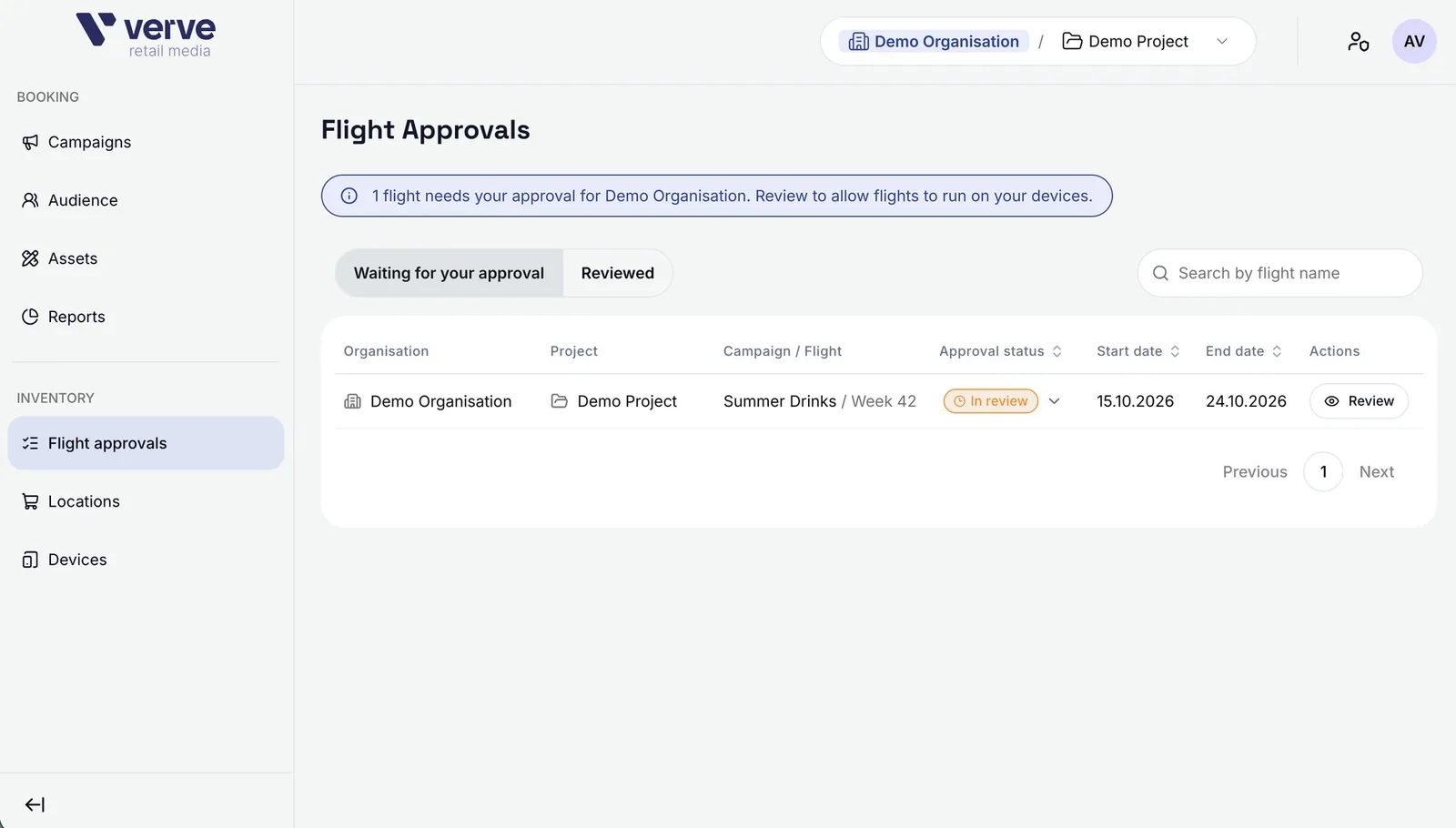
- 1The banner tells you how many flights need your approval.
- 2Waiting for your approval lists flights you haven’t decided on yet. Changes requested lists flights you declined, and Approved lists flights you approved.
- 3The Approval status of the flight. Click it to see what other partners decided.
- 4Review opens the flight’s details.
 1234
What the status means
The status in the list is the overall status of the flight, not only yours. A flight runs on the devices of several partners, and each partner approves it separately. Only partners with at least one device in the flight’s audience are asked to approve.
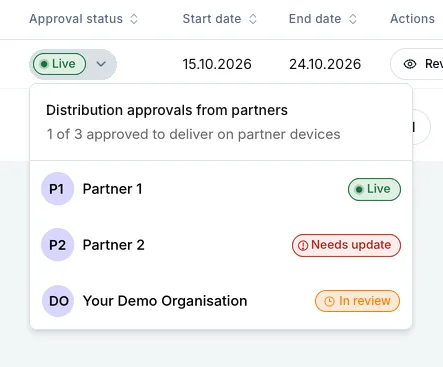
Click the status to open Distribution approvals from partners. Your own organisation is first in the list, with its name. The names of the other partners are hidden: they are shown as ‘Partner 1 devices’, ‘Partner 2 devices’ and so on. You can see the status of the flight with each partner:
- Live where the partner approved and the flight is running. Before the start date, it shows Scheduled.
- In review with a red flag where the partner requested changes.
- In review where the partner hasn’t decided yet.
In this example the flight is already Live overall, because one partner approved it, but it’s still In review for you, so it isn’t running on your devices yet. When a flight with more than one partner is live, the status also shows how many partners approved, for example ‘Live · 1/3’.
A red flag next to the status in the list means that a partner requested changes. Hold the mouse over the flag: it says ‘You have requested changes’ if it was you, or ‘A partner has requested changes’.
| Your decision | Status | On your devices |
|---|---|---|
| You haven’t decided yet | In review | Not running |
| You approved the flight | Live | Running |
| You declined and requested changes | In review | Not running |
If the start date is in the future, a flight you approved shows Scheduled and starts running on that date.
Review the flight
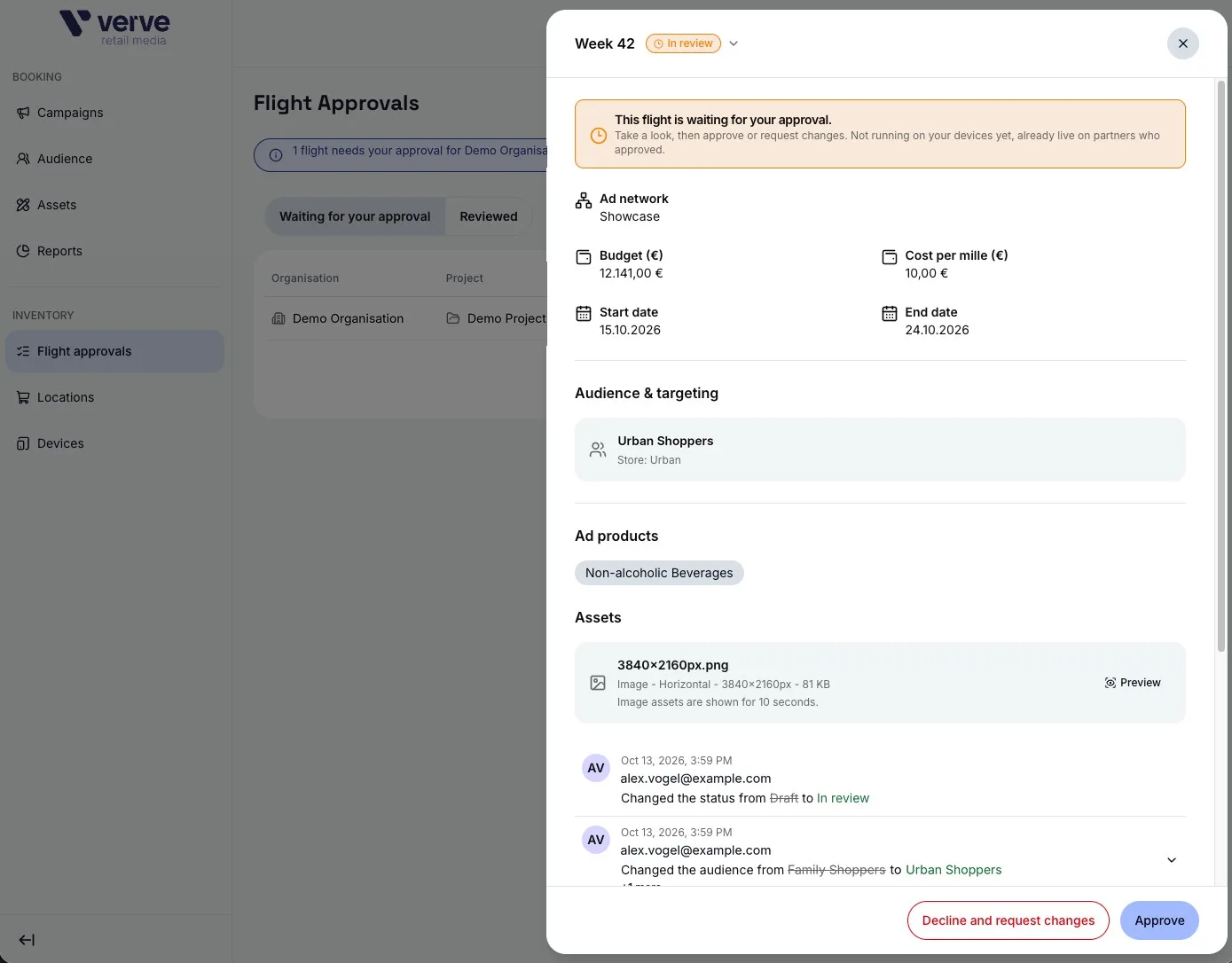
Click Review to see everything about the flight before you decide.
- 1Where the flight stands for you, and what happens next.
- 2Details: flight order ID, ad network, deal type, start and end date, budget, price and frequency cap.
- 3Audience & targeting: who the flight is aimed at. Below it, Ad products shows what the flight advertises.
- 4Assets: the image or video that will play. Click Preview to see it.
- 5Recent activities: the history of changes to this flight.
- 6Your two choices: Approve or Decline and request changes.
 123456
Approve or request changes
Approve
Click Approve. You see the message Flight approved successfully, and the flight moves to the Approved tab. It runs on your devices from its start date, or at once if the start date has passed.
Request changes
Click Decline and request changes. A short form opens:
Click Select your reason to see the list.
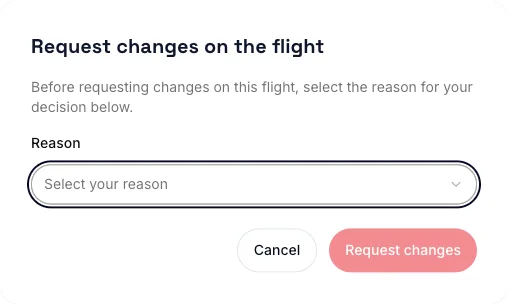
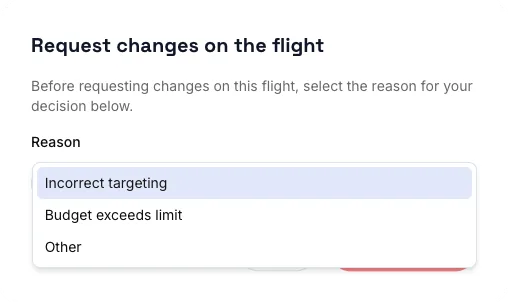
Choose Incorrect targeting or Budget exceeds limit, then click Request changes. The button works only after you have selected a reason.
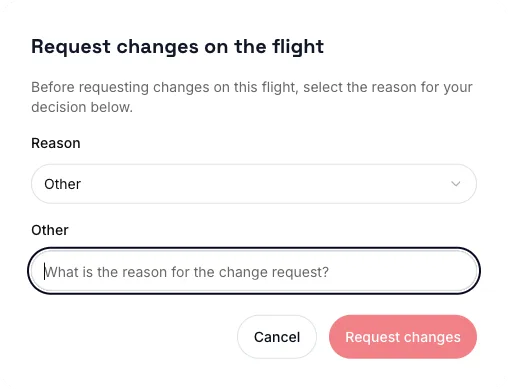
If no reason fits, choose Other and write your reason in the Other field. Then click Request changes.
What happens next
After you request changes, the flight moves to the Changes requested tab. It doesn’t run on your devices. The person who booked the flight sees your reason. To change the flight, they withdraw it, edit it and submit it again. It then shows up under Waiting for your approval, and all partners decide again.
You can change your decision later, without a new submission:
- On the Changes requested tab, click Review and then Approve. You can also click Decline and request changes again to give another reason.
- On the Approved tab, click Review and then Decline and request changes. The flight then stops on your devices.
This is possible until the flight is completed or terminated. See Distribution approvals and Change request reasons for all rules.